- Before you export your grades from ICON to MAUI, you’ll want to review the following steps to ensure your grades are ready to transfer.
- If you are going to use the MAUI in ICON integration to transfer grades, you'll want to post all assignments in the gradebook before sending grades to MAUI. This ensures that the grades you see in ICON will be the same grades that are transferred to MAUI.
- If you are not using ICON to record your final grades and wish to import a file to MAUI, see this Final Grade Entry Information.
Prepare to Export Grades from ICON to MAUI
- You must be a Teacher or TA in your ICON course and have the rights to save grades in MAUI for your course. If you are not listed as the instructor of record on MAUI, you will not be able to transfer the grades.
- Make sure grade symbols in your grade scheme are acceptable to MAUI and that the grade scheme is applied to the course.
- Grade symbols are the students actual grade (e.g., A, A-, B+, U, S, R, W). To find out what symbols you can use in your course, log in to MAUI as though you were entering grades and see what grade symbols are available from the drop-down menu. The symbols you are using in your ICON grade scheme should all be available from this list in MAUI. Otherwise, you will need to create and apply a custom grade scheme in ICON that includes only acceptable symbols.
- Students who are auditing your course will receive either an R (completed) or W (not completed). This is true across the university.
- To view the grading symbols used in the College of Liberal Arts and Sciences, go to the Grading System section of the Academic Handbook.
Enable the Grade Scheme in ICON
- Click Settings.
- Click Course Details.
- Check the box next to Enable course grading scheme.

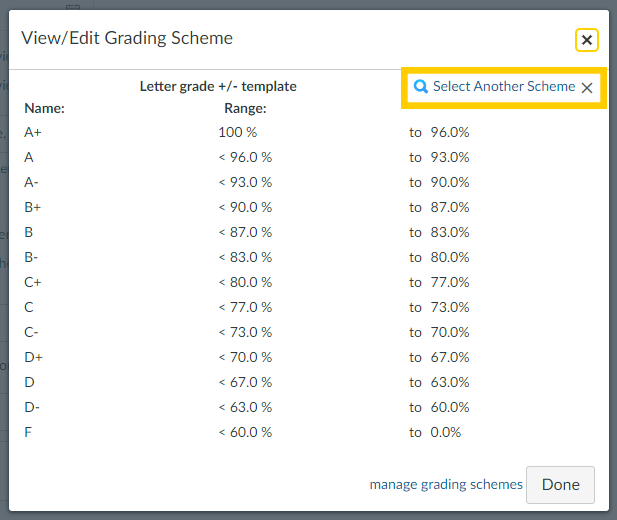
- Users must click view grading scheme to use the University Letter Grade scheme. The checkbox enables the default grading scheme from Canvas, which differs from the University of Iowa standard, this will result in giving students a slightly lower score.
- The next window will show you the currently selected Grade Scheme. If you have not altered this, it will be Canvas' default. To change the grading scheme, clickk Select Another Scheme.
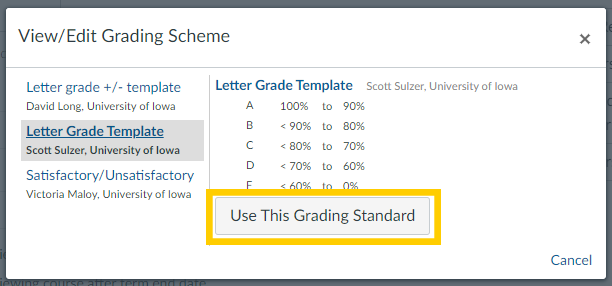
- Choose a grading scheme, then click Use This Grading Standard.
- Click Done, then click Update Course Details.
Create Your Own Grading Scheme
- If you wish to create your own grading scheme, follow steps one through four above. In step five, instead of clicking Select Another Scheme, click manage grading selection.
- Click Add grading scheme.
- Give your grading scheme a name. You can add, remove, and rename rows and edit grade ranges.
- Click Save. You can edit the grade schemes you created.
- Click Update Course Details.
Watch this short video guide (1:04) to see these steps in action.
Add MAUI in ICON to Your Course Navigation Menu
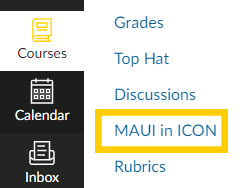
By default, the MAUI in ICON integration should already be in your course in the Navigation Menu. If you do not see it, you can add the MAUI in ICON integration to the Navigation Menu.
Export Grades
Important: post all grades for assignments in your course before sending grades from ICON to MAUI. You have two options for getting final grades from ICON into MAUI: