When using this method to import grades to MAUI from ICON, it is important to be aware of how ICON treats ungraded items. Instructors can set the Gradebook to treat ungraded items as zero, but this only changes your personal view of the Gradebook. It does not change the values of the items. Learn how to change your view of the Gradebook to see ungraded items as zero. When exporting to a CSV file and importing to MAUI, we recommend entering zeros for ungraded assignments.
Creating your own CSV file from scratch to import to MAUI
It's possible to create your own CSV file and upload grades to MAUI. Visit this MAUI guide for more information on how to do this.
1. Export your grades from Canvas
Use the export steps listed on the Canvas website.
2. Format your data
Once the export has been completed you will need to verify that the field "SIS User ID" includes any leading zeros. These numbers are the student's UniversityID numbers and they have to match exactly for the upload to work. To change the column of SIS User ID to be 8 digits in length:
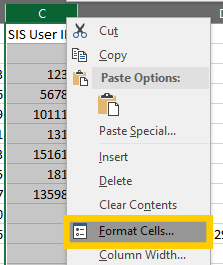
Select the entire column by right-clicking on the column letter and choose Format Cells
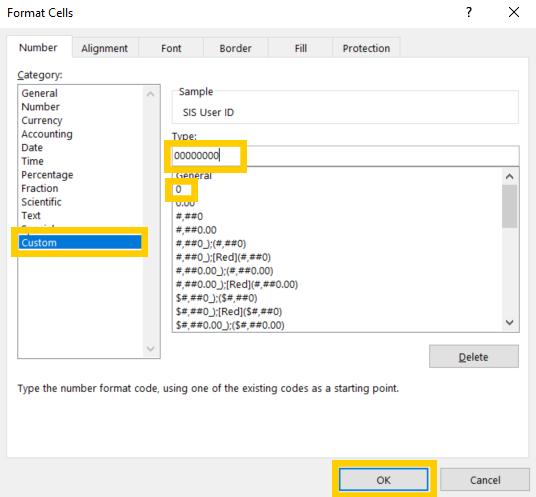
In the Format Cells window:
- Choose Custom
- Click the "0"
- In the Type: field enter 8 zeros - "00000000"
- Click OK
The cells should now have 8 digit SIS User ID's
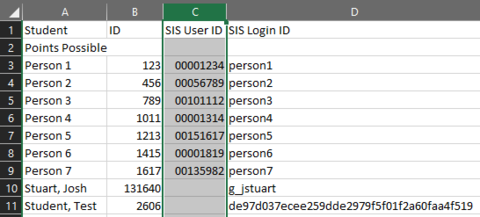
NOTE: Row 11 is the Test Student which is created and added to your Gradebook after you use/access the Student View feature in ICON for testing functionality within a course.
3. Check grade columns and delete unnecessary data
Delete 3 of the 4 ‘Final Letter Grade’ columns listed within the exported gradebook csv file - they are not needed.
Current Grade: Score based on only submitted assignments and posted assignments (excludes hidden assignments).
Unposted Current Grade: Score based on only submitted assignments and hidden assignments (excludes resubmitted assignments). Final Grade: Overall score including unsubmitted assignments as zero (excludes hidden assignments).
Unposted Final Grade: Overall score including unsubmitted assignments as zero and hidden assignments (if any).
4. Navigate to your course in Maui to edit.
- Log into MAUI.
- Click on My Courses.
- Click on the Edit link under the Final List column.
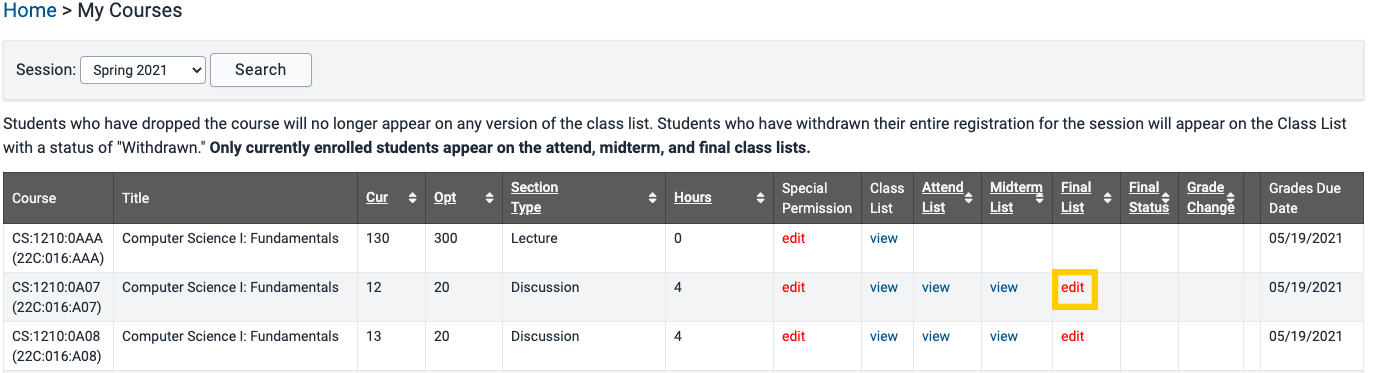
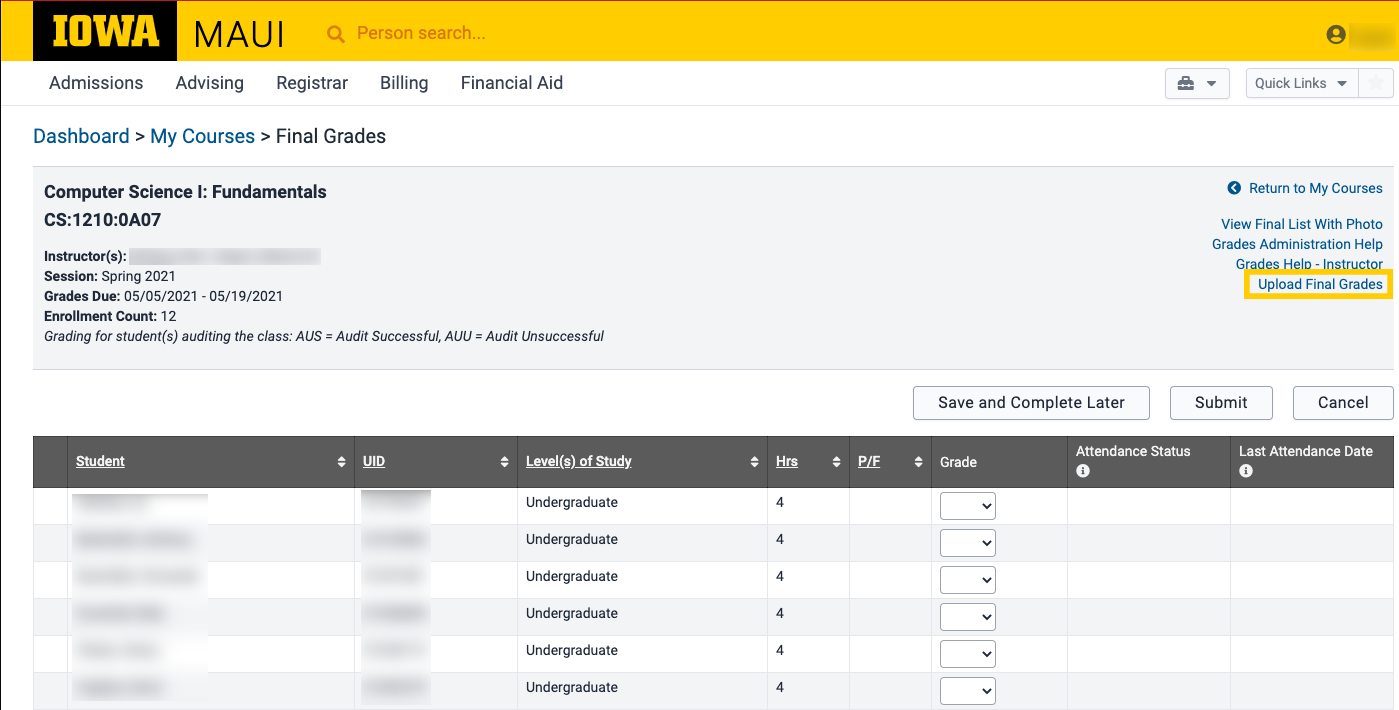
5. Upload final grades
Click Upload Final Grades.
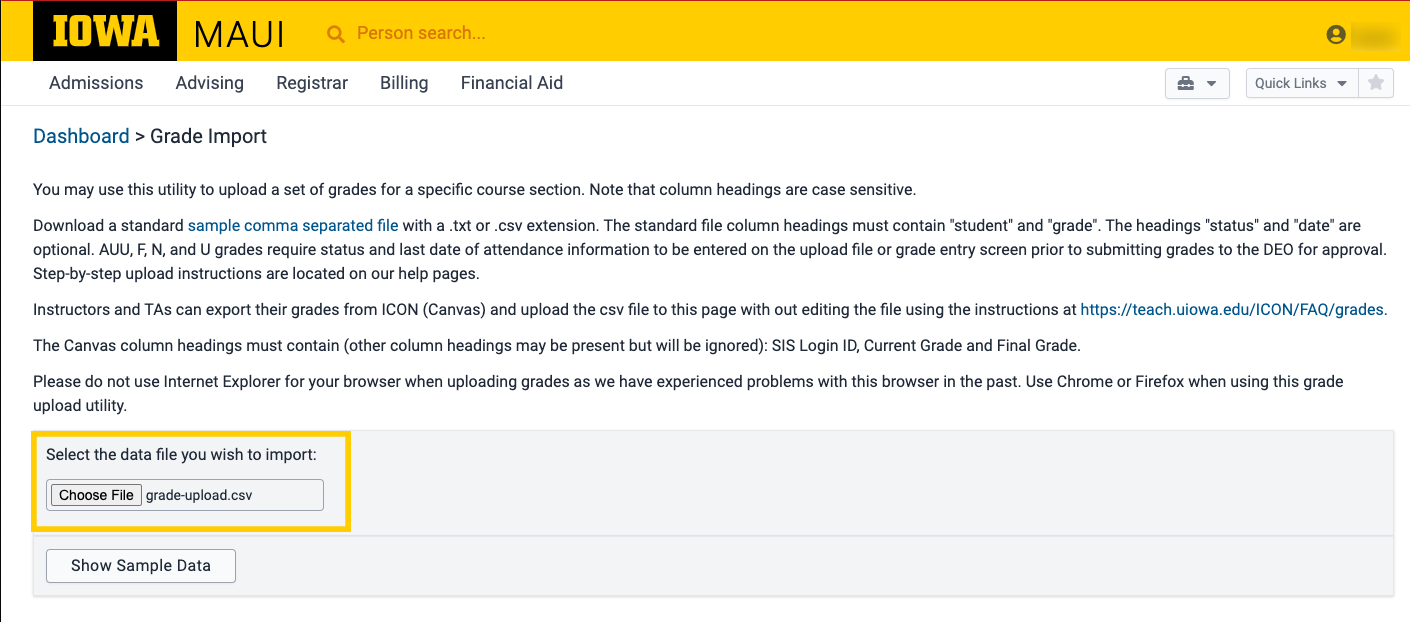
Click Browse and select the file from your computer.
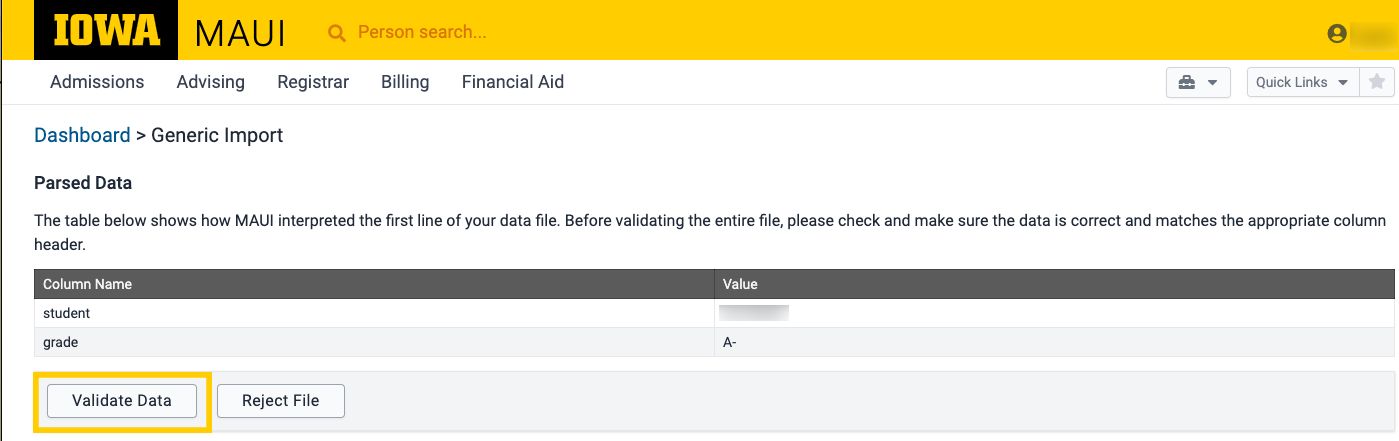
6. Validate data
- Click Show Sample data. The next page will show a sample of the data that was imported from the file.
- If the grade data looks correct to you, click Validate data. MAUI will test the data in the file to make sure it’s in the right format.
7. Import data
Click Import File to import the grades from the csv file into MAUI.
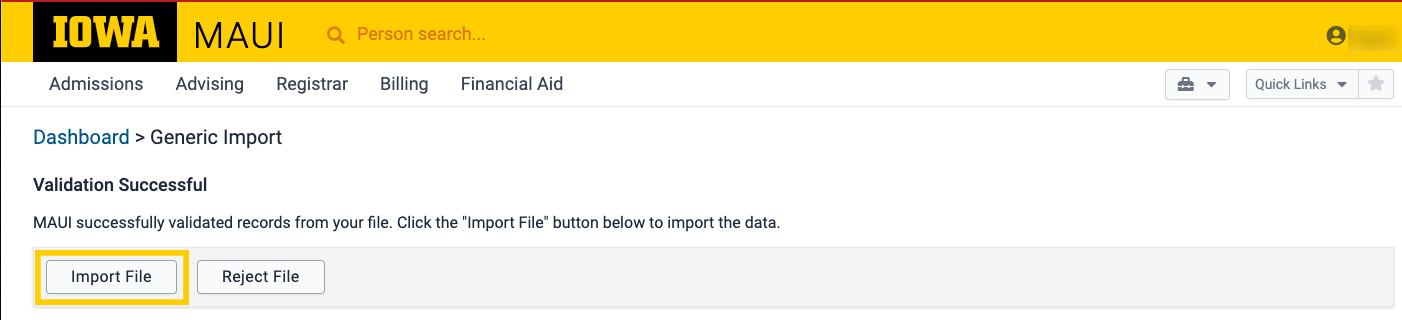
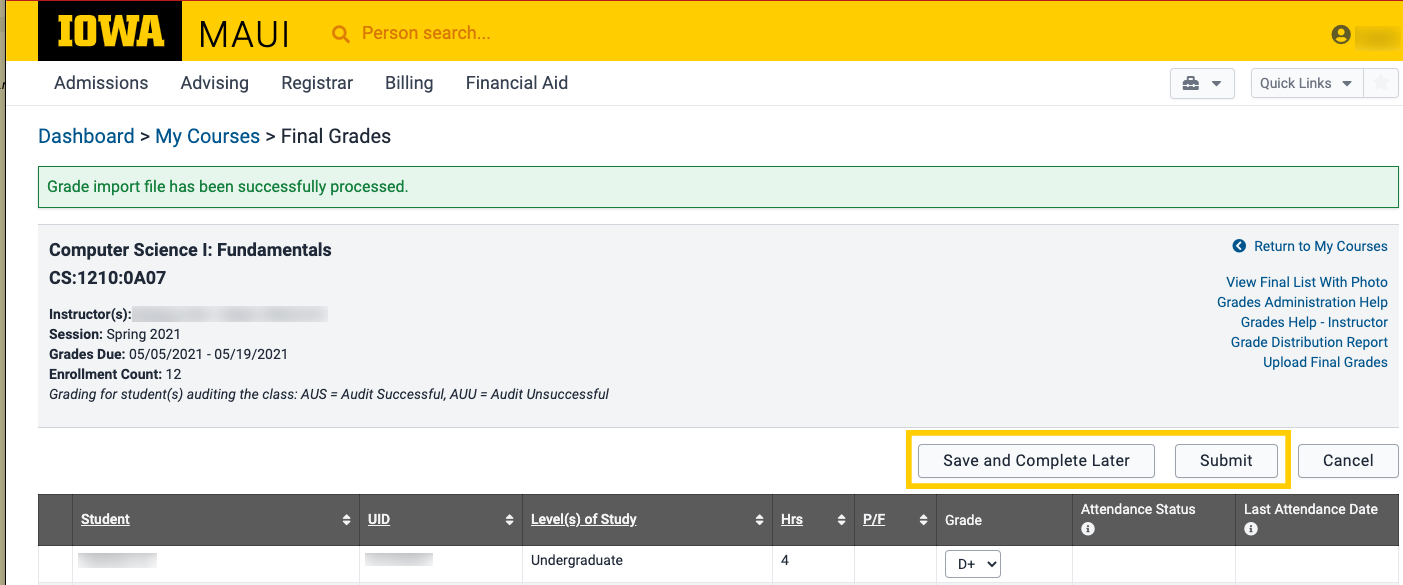
MAUI will show a message about the grades being successfully processed. Click either Save and Complete Course Later or Submit.
NOTE: Grades cannot be processed until they have been submitted to the DEO for approval. Meaning, you must click Submit at some point before the grade submission deadline.