Two roles for undergraduate teaching assistants are available in ICON, Undergraduate TA –Grading Responsibilities and Undergraduate TA – No Grading. Colleges can use these roles if they hire undergraduate students for course assistance as they offer limited access to an ICON course that do not duplicate instructor or TA permissions. More detailed information can be found on the ICON Roles and Permissions webpage.
For technical assistance with any ICON Roles, you can reach out to the ITS Help Desk. For nontechnical questions about these roles, you can email [email protected].
Undergraduate TA - Grading Responsibilities
People with this role are able to assist with grading by being able to add and edit grades in the Speedgrader. Role permissions include editing grades, moderating, posting and reviewing discussions, and viewing all student groups in the course.
Undergraduate TA - No Grading
People with this role are able to assist with moderating course discussions. Role permissions include moderating, posting and reviewing discussions, and viewing all student groups in the course.
Adding Undergraduate TA Roles to an ICON Course
Students should complete FERPA training before this workflow is completed.
- If you are the instructor or department admin, navigate to the course that needs the undergraduate TA.
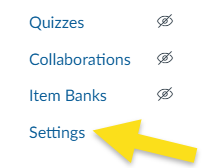
- In the Navigation menu, click on the Settings.
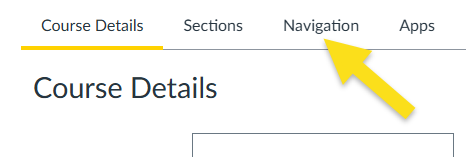
- In the menu on the top of Settings, click on the Navigation tab.
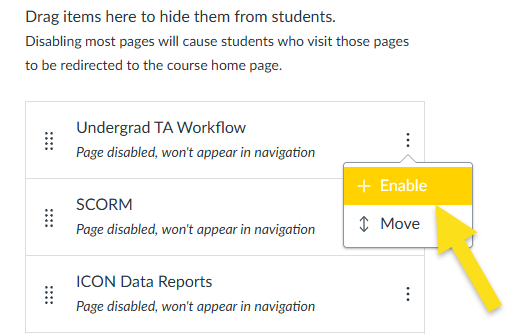
- Scroll down to find Undergrad TA Workflow from the list of course navigation items. Click on the three vertical dots to select Enable.
- Click the Save button at the bottom of the page to make sure that your changes save in the course.
- Now the Undergrad TA Workflow should be on the left side course navigation. It will not be visible to people with student roles.
- Click on Undergrad TA Workflow. This should open a new workflow form after a few seconds; if it does not, click on the button to open the workflow form.
- The workflow form can then be filled out with the student’s HawkID. Be sure to select which role the student should have.
- Submit the workflow form to be approved by the DEO. If the student has not completed FERPA training, the workflow should be automatically voided. Once a student completes their FERPA training, a new workflow form can be filled out.
- Once the workflow is approved, the student will be added to the course with the correct role.
Undergraduate TA Roles in Classic Quizzes and New Quizzes
Undergraduate Teaching Assistant roles work differently in Classic and New Quizzes because Classic Quizzes are built directly into ICON, while New Quizzes uses an LTI connection. This means restrictions on Classic Quizzes do not transfer to New Quizzes. It is important to communicate clearly with Undergraduate TAs about expectations for their roles in specific courses.
Below is a break down of how both undergraduate TA roles differ for New and Classic Quizzes .
Undergraduate TA – Grading Responsibilities
Classic quizzes
- Cannot edit the quiz.
- Cannot access question banks.
- Can preview the quiz even if it requires the lockdown browser.
- Can access Speedgrader.
- Can see survey statistics.
Can generate a student analysis.
New quizzes
- Cannot access item banks.
- Can edit the quiz and add questions.
- Can adjust settings.
- Can moderate the quiz.
- Can view the reports.
- Can create an export.
Undergraduate TA – No Grading
Classic quizzes
- If the quiz is using the lockdown browser, they cannot preview the quiz.
- If the quiz does not use the lockdown browser, they can preview the quiz.
- Cannot see survey statistics.
- Cannot generate a student analysis.
- Cannot moderate or edit the quiz.
- Cannot access question banks.
- Cannot access the Speedgrader.
New Quizzes
- Cannot access item banks.
- Can edit the quiz and add questions.
- Can adjust settings.
- Can moderate the quiz.
- Can view the reports.
- Can create an export.