General Information
How do I add Note Depot to my course?
Instructors can add Note Depot to their own courses.
- Click Settings in the ICON Navigation menu to the left of your ICON course.
- Click Navigation in the menu across the top.
- Scroll down to the second list of items and find Note Depot. Click the three dots to the right and select Enable.
- Note Depot will now appear in the top list of items, which shows what will appear in your ICON navigation menu. You can drag to move it where you want it to appear in that menu.
- Scroll down to the bottom and click Save.
- Click on Note Depot link in the course navigation to configure the course settings.
- Choose to connect UICapture to Note Depot, designate notetakers, or both.
- Click Save.
What are the options for note generation for my course?
Note Depot supports both AI-generated lecture notes and notes generated by approved notetakers. You can choose to have notes generated automatically from recordings of your lecture, have notetakers submit and share their notes, or both.
When do the notes become available to students?
Instructors have complete control over when notes are released to students. From the Note Depot settings, notes can be toggled to release automatically to students as soon as they become available.
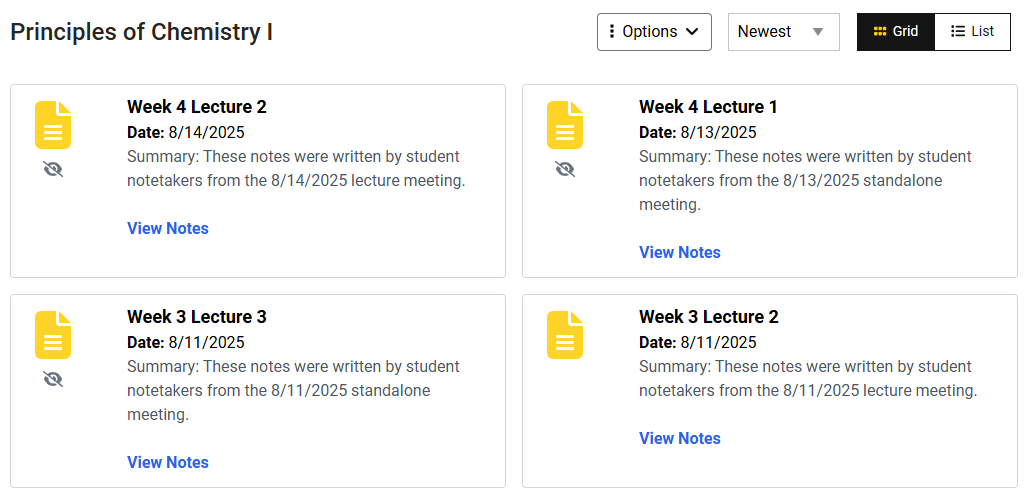
If this is not selected, instructors will need to manually release notes to students each time a new set becomes available. Notes that are not yet released are indicated by the crossed out eye.
- Click the Options menu and choose Release Notes.
- Use the options at the top to select All, None, or Custom notes.
- If choosing custom, select the individual notes you want to release.
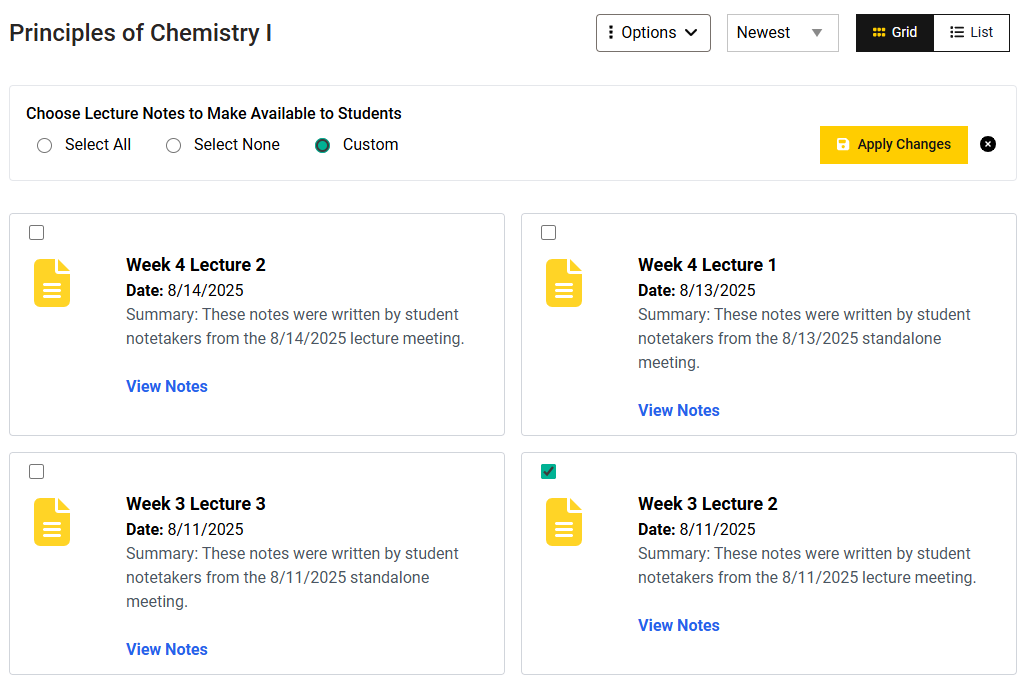
- Click Apply Changes.
- Published notes that students have access to will not have a symbol. Unpublished notes that students cannot access will have a symbol next to them.
Can there be more than one set of notes for each class meeting?
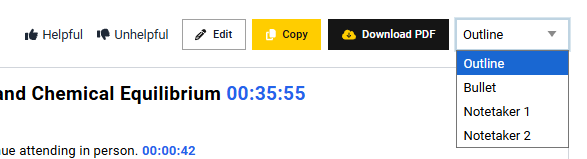
Yes, depending on your course settings, there may be AI notes and up to five notetaker submitted notes for any meeting. You can switch between notes using the dropdown menu in the top right corner.
I am using Note Depot as an accommodation for my SDS students. Do I have to give access to the notes to all students?
Note Depot can be used for only students with the Class Notes accommodation or made available to all students in a course.
- Click the Options dropdown, then choose Settings.
- Click the Advanced Settings link to show more options.
- Set the toggle for Restrict notes to only students with an SDS Class Notes accommodation to meet your needs. Each student needing access will need to generate a Letter of Accommodation before they would have access in this case.
- Click Save.
Students with newly generated Letter of Accommodation may see a delay of up to 24 hours before receiving access.

Can my teaching assistants access Note Depot?
Yes, teaching assistants for your course will have instructor access to Note Depot. Once you have completed the initial setup, teaching assistants can edit the AI notes, adjust settings, and add notetakers.
How should I introduce Notes Depot to my students?
If all students will have access to Note Depot, you may want to make an announcement in class or on ICON letting students know that Note Depot will be available in this course.
If you are restricting access to students with SDS Class Notes accommodation, then we recommend emailing the students with the accommodation.
You may want to remind students of some of the following:
- Note Depot will include AI notes and/or notes generated by the notetaker.
- If you are willing to be a notetaker for this course, please let your instructor or TA know.
- Note Depot is meant to supplement their learning and is not a replacement for coming to class or taking their own notes. Writing your own notes helps you learn the information in ways that are meaningful to you.
- If using AI-generated notes, disclose this information to students and remind them to be critical of AI-generated information.
- Tell students when the notes will be ready. If you have it set to automatically release, it will be ready shortly after the recording has been processed. If you plan to release notes manually, let students know when to expect them after each lecture.
If I copy my course, will the notes be copied too?
No, the notes will not be copied. At this time, the notes are connected to the UICapture videos. If the UICapture videos are put into a folder in the new course and Note Depot is turned on, a new set of notes will be created.
Have additional questions or feedback?
For technical assistance with Note Depot, to provide feedback, or request features please email its-helpdesk@uiowa.edu.
AI-Generated Notes Information
How are the AI-generated notes created?
First, the transcript generated by UICapture is reviewed by an AI-based tool to make basic corrections, including removing some of the non-speech verbal fillers (ex. "um" or "like") and to replace words and phrases that may not fit the context of the course with more appropriate terms (ex. names of instructors or subject specific terms).
This updated transcript is then used with another AI-based tool to generate the summary and notes. It is then asked to format the notes into the two versions that become available on Note Depot.
Do I have to record my lectures to use the AI-generated notes?
Yes, Lecture AI requires a transcript from UICapture (Panopto) in order to generate the notes.
If you do not want to record your lectures, you can still have notetakers submit their notes to Note Depot.
How do I connect UICapture to Note Depot in order to generate notes?
Click on Note Depot in your ICON course navigation to launch the Note Depot app.
- Click the Options dropdown, then choose Settings.
- Next to “Do you record lectures with UICapture?” click the toggle to allow Note Depot to access your UICapture course folder. The toggle will turn yellow when it is enabled.
- Enable the toggle for “Use AI generated notes?” to generate class notes.
- This feature will process notes for any videos that you have in your UICapture course folder.
- This process requires a UICapture course folder, which can be enabled by following the steps in this guide.
- Because Note Depot uses the title of your UICapture videos as the title for the notes, it is a best practice to add a meaningful title where possible.
- Click Save.
When first enabled, UICapture videos may take up to 24 hours to sync to Note Depot. Subsequent recordings will appear shortly after the video is created.
Do I have to share the transcript of the lecture with my students?
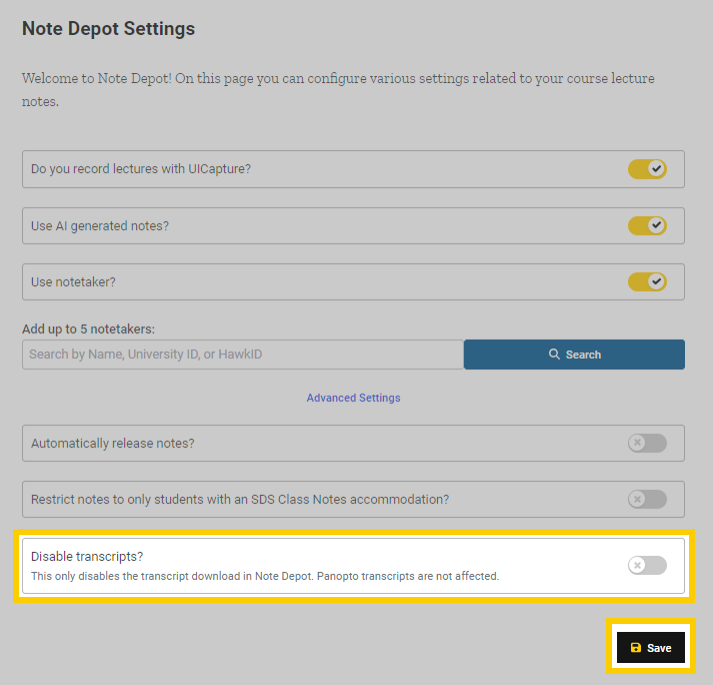
Instructors can choose to turn off the option for students to download transcripts from within Note Depot. This option does not turn off the option to download a transcript directly from UICapture.
- Click on Note Depot in your ICON course navigation to launch the Note Depot app.
- Click the Options dropdown, then choose Settings.
- Click on Advanced Settings to expose additional course options.
- Enable the toggle for “Disable transcripts?” to remove the option for students to access transcripts.
- Click Save.
How can I use UICapture to generate notes, but not share the video with Students?
In order to record videos in UICapture and have AI generated notes in Note Depot, but not allow students to have access to the videos, you will need to make a new folder in UICapture and change the permissions. You can do so by following these steps.
- Open UI Capture in your ICON course.
- Click "Add Folder" and give it a name.
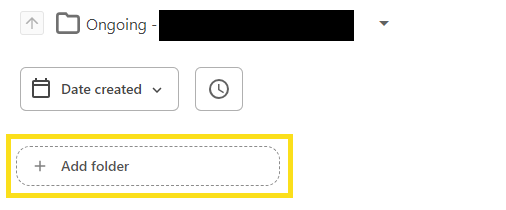
- Click on the folder to open it.
- Click on the three dots in the upper right corner and select "Share." A new menu will open.

- Under "People and Groups," select "Change." This will cause a new menu to pop open.
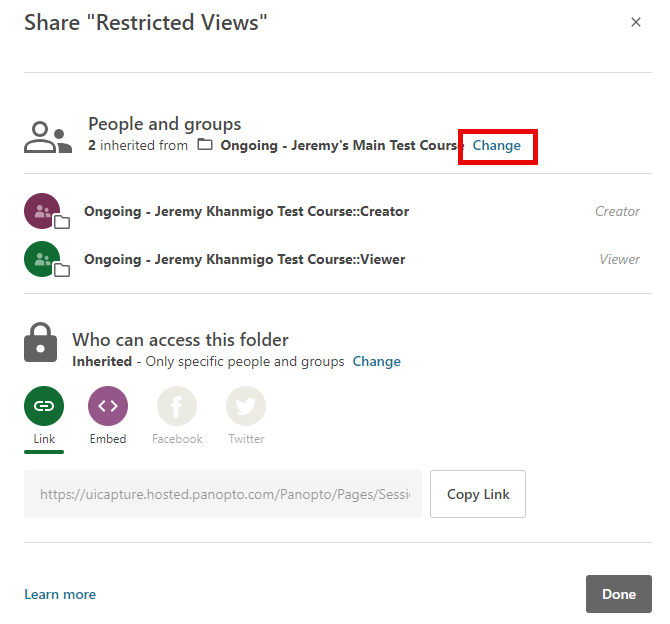
- Select "Stop Inheriting."

- Then click on the X next to Viewer. Be sure to click Save and then click Done.
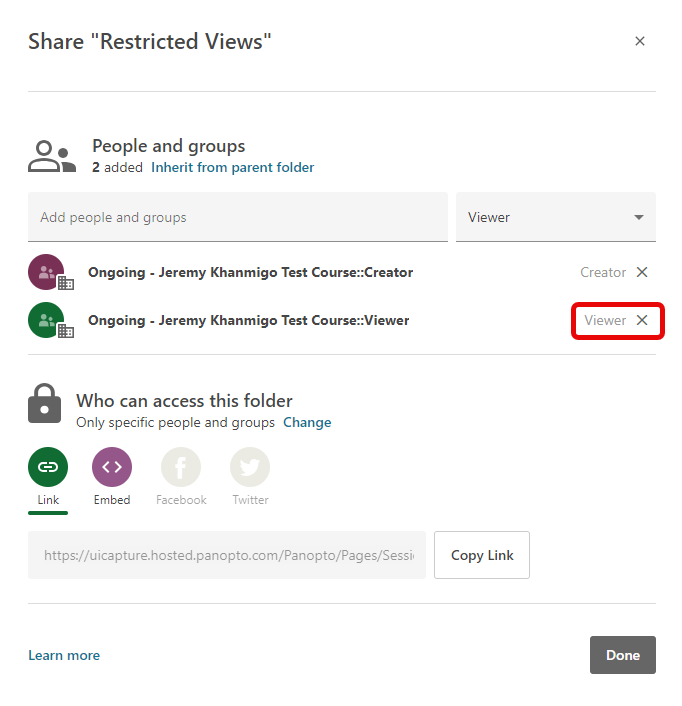
Videos that are moved into this folder will be available to Note Depot to generate notes, but students will not be able to access those videos.
Videos will need to be moved into this folder. An instructor or TA can move the videos by dragging them from the main folder to the newly created folder.
If you are recording directly into Panopto, you can have it record to this folder by opening up the folder in ICON and clicking "Create" in the upper right corner. You can then select to record in the application or in the browser. It will then save to the folder.
If you are recording with Zoom, please reach out to the help desk for assistance at its-helpdesk@uiowa.edu.
Can I edit the AI-generated notes?
Yes, instructors maintain full control over the AI-generated notes shown to students.
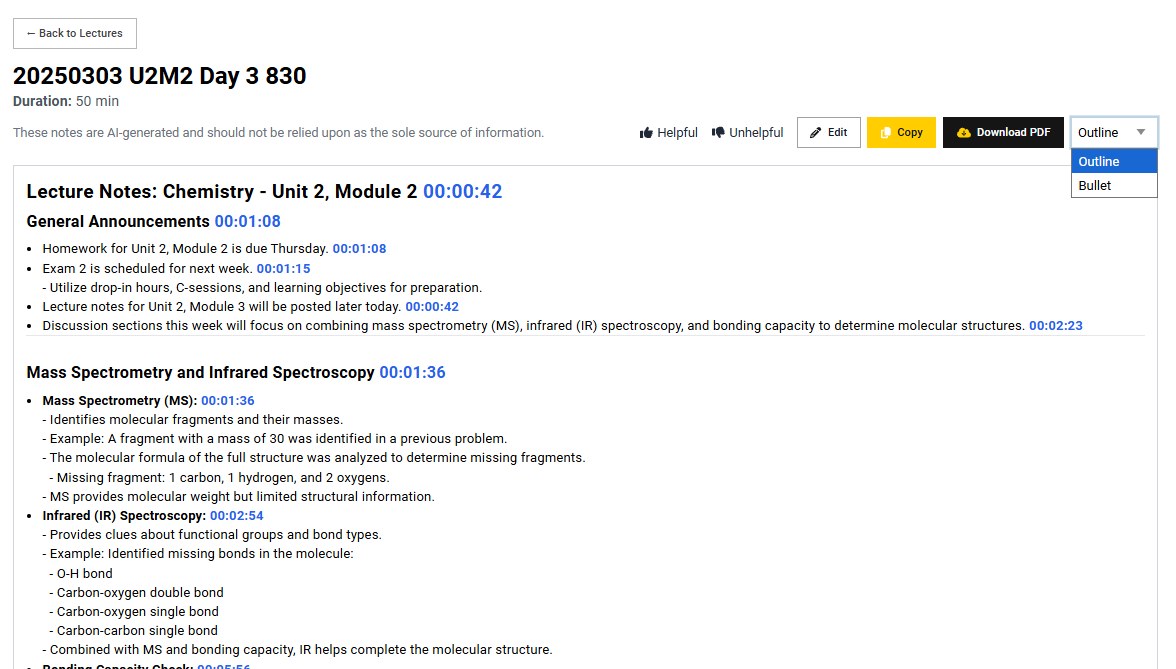
- To edit notes, click the View Notes link of the notes you want to edit.
- At the top of the screen, is a dropdown that contains Outline and Bullets. Changing between these alters the way the notes are displayed.
- Both views will need to be edited independently. Choose a mode, then click the Edit button.
After you click edit, there will be a warning at the top of the page about editing the lecture notes. The message reads:
You are editing lecture notes!
- Use plain text for your edits; if necessary, use Markdown formatting (* for bullets, # for headings, **bold** for emphasis, etc.).
- Timestamp numbers like (e.g., [00:12:34 --> 00:13:45]) are used to generate clickable links for students. Editing or removing them may break navigation.
- Avoid pasting images or unsupported content.
Notetaker Submitted Notes Information
Can anyone submit notes?
Only individuals the instructor designates as notetakers can submit their notes to Note Depot. A course can have up to 10 designated notetakers.
How do I designate a notetaker?
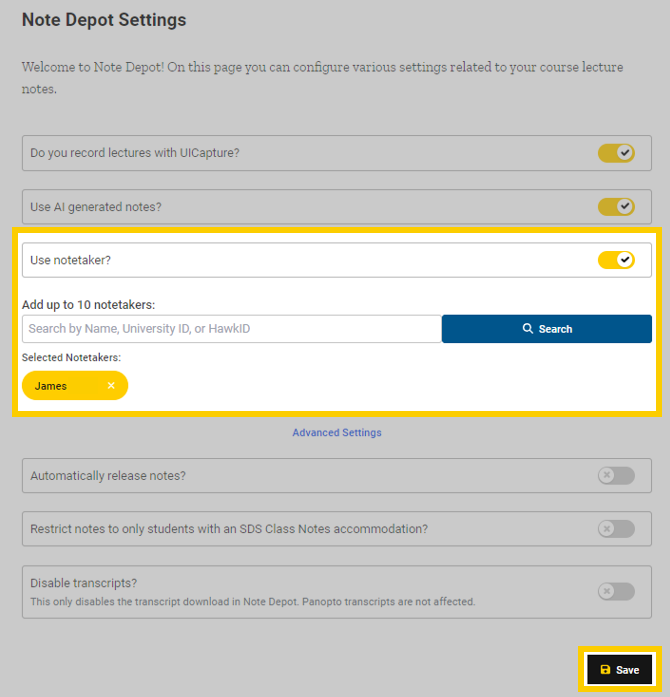
Designate a notetaker from within the Note Depot app.
- Click the Options dropdown, then choose Settings.
- Click the toggle for Use notetaker? then enter the names/IDs of the individuals who have been designated as notetakers. You can have up to 10 notetakers for a single course.
- Scroll to the bottom and click Save.
- Designated notetakers may benefit from reviewing the following sections of the Note Depot FAQ for Students.
How does an individual submit their notes?
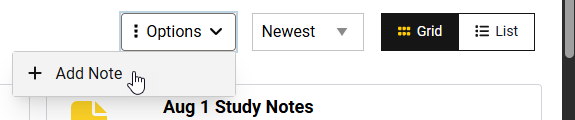
Once an individual has been designated as a notetaker, they can see the Options menu at the top of the screen.
- Click the Options dropdown, then choose + Add Note.
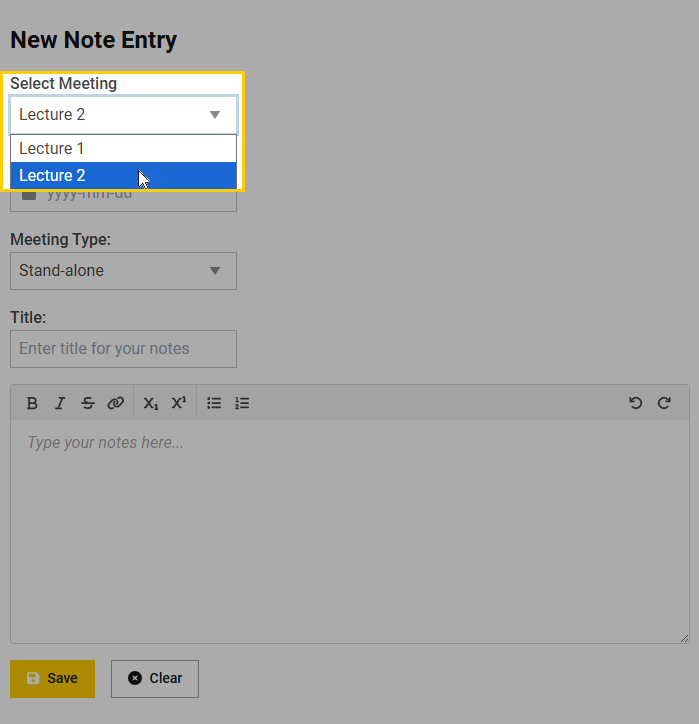
- Enter the meeting details in one of these ways:
- Use the Select Meeting dropdown to choose a meeting date that is already associated with a UICapture recording.
- If the class meeting is not in the dropdown line, use the Select Date of Meeting and Meeting Type fields to specify the date and type of a standalone meeting.
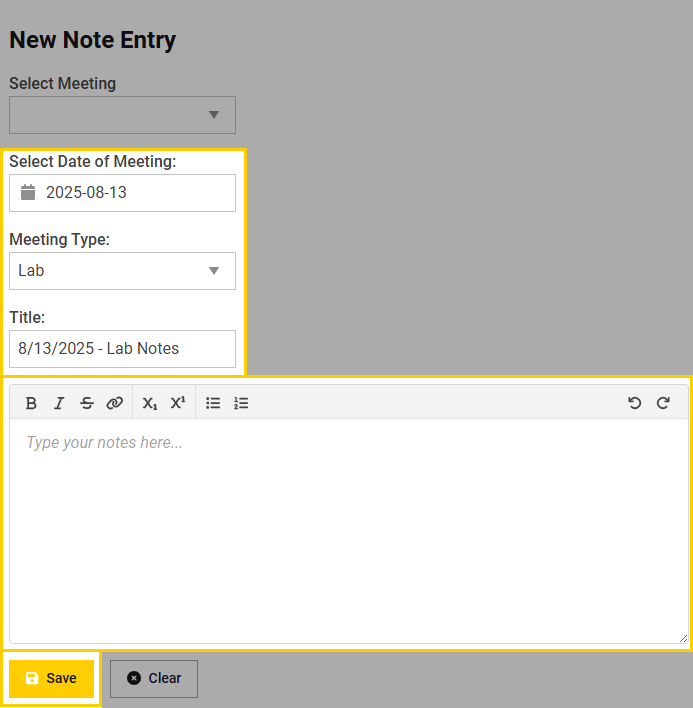
- Enter a Title for the notes.
- Type or paste the notes into the box provided.
- Click Save.
Depending on whether notes are automatically released, individuals may not immediately see the notes they have added.
Is it possible to edit the notes submitted by notetakers?
At this time, only the AI generated notes can be edited.
If the notes submitted by notetakers contain sensitive data or incorrect information, please email its-helpdesk@uiowa.edu for assistance.