General Information
How do I access Note Depot?
If an instructor has enabled Note Depot for your course, you can find a link to it on that course's ICON site. It will be in the navigation menu on the left side of the page.
How do I find the notes for a specific lecture?
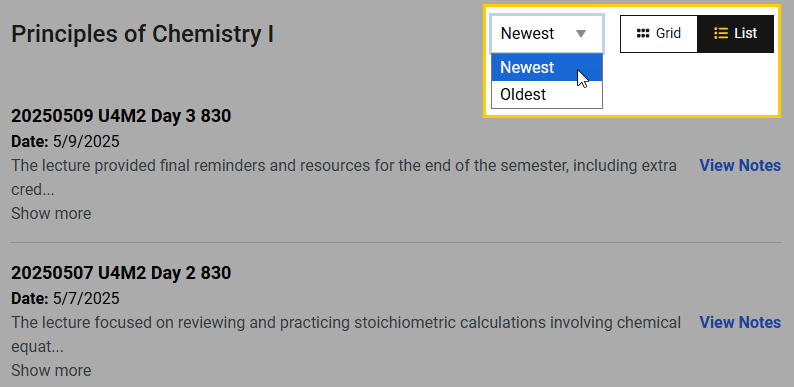
Lecture notes will be organized by the date of the lecture. You can choose to organize the lectures by the Newest or Oldest first.
How soon after a lecture will notes be available?
The course instructor decides when to release the notes to students.
How do I tell which notes are AI generated and which are generated by a notetaker?
When clicking on a specific lecture’s notes, you will see a message at the top that indicates whether you are viewing AI or notetaker generated notes.
The AI notes are sometimes inaccurate. How do I give feedback on the quality of the notes?
Please use the “Helpful/Unhelpful” buttons to help guide our attention to areas we need to focus on for future development.

What should I do if I notice something is wrong in the notes?
AI and human notetakers sometimes make mistakes. If you notice an error in the notes provided by Note Depot, reach out to your instructor or teaching assistant to let them know about the error.
I enjoy using Note Depot. How can I turn it on in my other courses?
Note Depot can only be turned on by the course instructor.
Notetaker Information
Can anyone submit notes for a class?
No, only notetakers that have been designated by the instructors can submit their notes.
I am a notetaker for my class. How do I submit my notes?
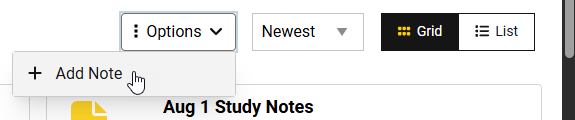
Once you have opened Note Depot, you can click on Options and + Add Note to submit your notes.
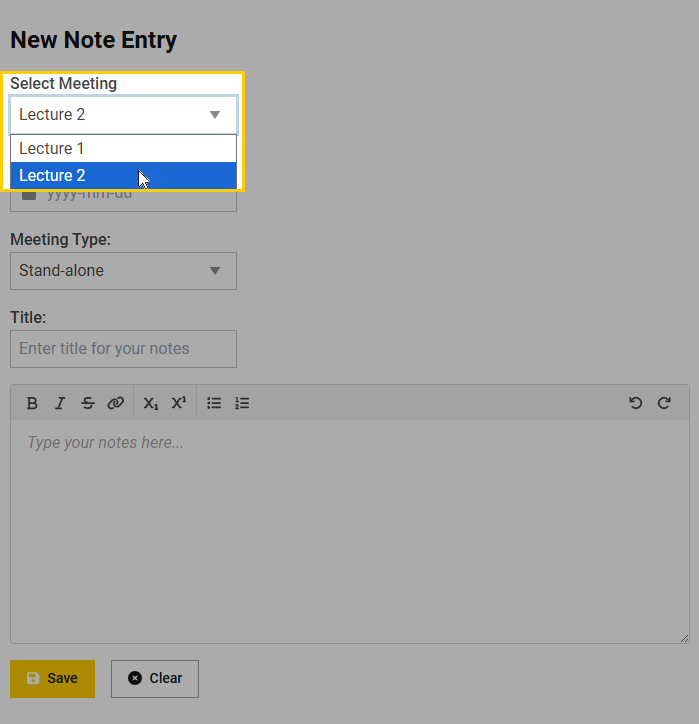
You will need to indicate which class meeting the notes are for. First, click on the drop down menu under Select Meeting to see if the course meeting is listed.
If it is not on that list, you will need to enter the date of the meeting and select the type of meeting.
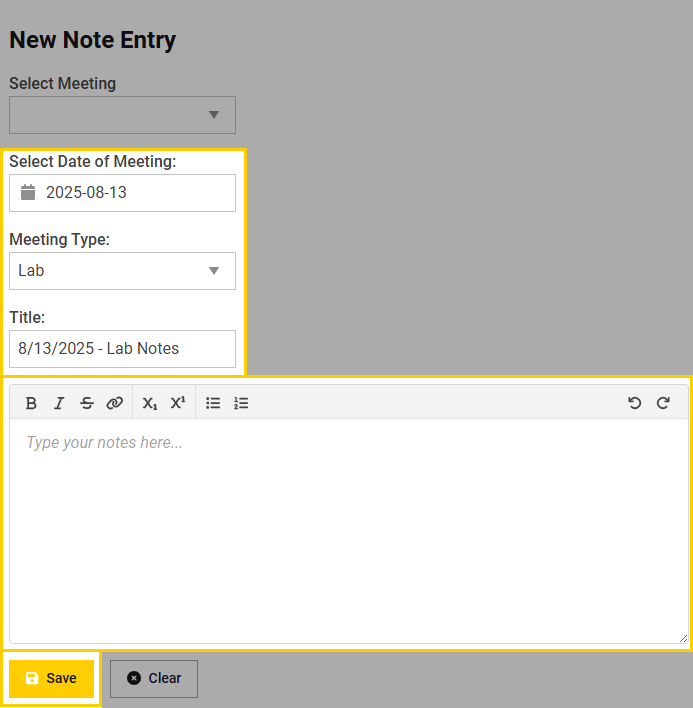
Then you can enter a title for your notes. Be sure to use a descriptive title that will help the class know what the notes are about and which section or class meeting they correspond to.
Finally, you can use the text box to type your notes from scratch or paste from an existing document. Note: Pasting directly from Google Docs is not recommended at this time.
When you are done, be sure to click Save.
Can I edit the notes I have already submitted?
You cannot directly edit notes that have been submitted. Please work with your instructor to update the notes.
What formats can I use to submit my notes?
Currently, we are unable to support uploading your notes into Note Depot as a file. You can copy and paste your notes from a PDF or Word document into the text box when submitting your notes.
Have additional questions or feedback?
For technical assistance with Note Depot, to provide feedback, or request additional features, please email its-helpdesk@uiowa.edu.