Tips for introducing peer review to students
To get the most out of Peerceptiv peer reviews, it can be helpful to talk to students about the value of peer review and why you have decided to include it in your class. This guide from Peerceptiv has some good advice.
How do I create a Peerceptiv assignment in ICON?
All Peerceptiv assignments need to be created in ICON first. If you create an assignment in Peerceptiv first, it will not be able to link back to ICON or the gradebook. No matter which type of Peerceptiv assignment you are using, follow these steps to first create the assignment in ICON.
- Start your Assignment in ICON.
- Click on Assignments in the course navigation menu to the left.
- In the upper right, click on the +Assignment button to create an assignment.
- Fill out the assignment information, including the name, a description of the assignment, the number of points and the assignment group.
- Set the Submission Type to External Tool and create a Peerceptiv Assignment.
- In the Submission Type section, select External Tool.
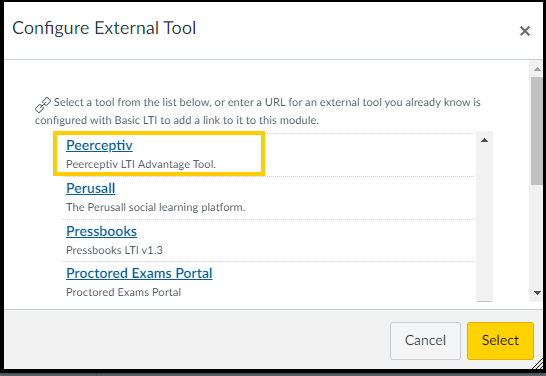
- Under Enter of Find an External Tool URL, click Find.
Scroll through the choices in Configure External Tool, and select Peerceptiv, then click Select.
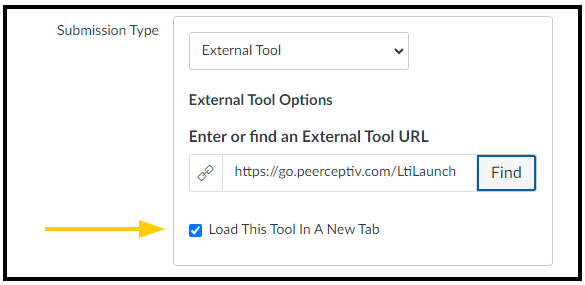
Check Load This Tool In A New Tab.
- Set ICON Due Dates.
- Select the date you want the assignment to be due. You can also set availability dates to the assignment, if appropriate.
- Click Save or Save and Publish.
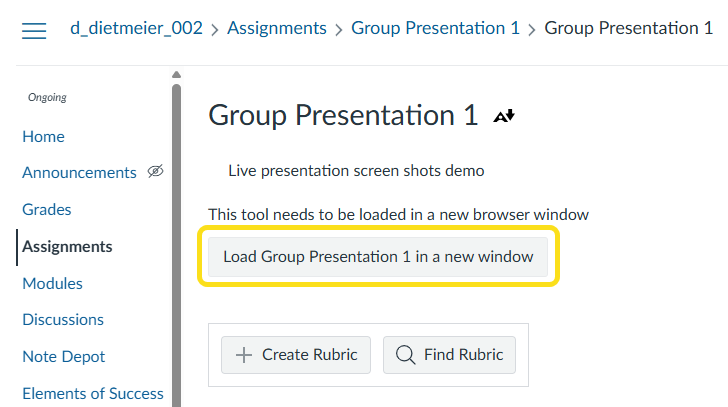
You will then need to go to Peerceptiv to finish setting up the details of the assignment.
Which assignment type should I choose?
After creating the assignment in ICON and opening Peerceptiv, you will have different options for assignment creation. We recommend using the Standard Workflow if it is a new assignment.
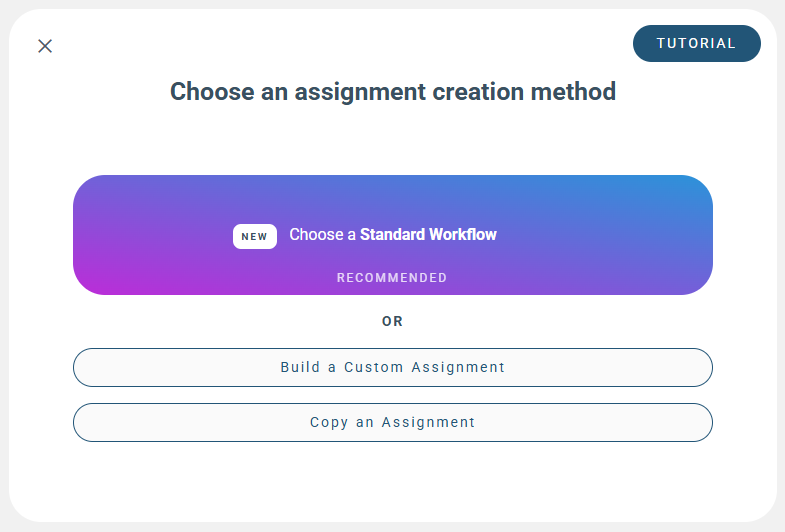
There will then be five different workflow options. Follow the links to learn how to make one of the assignments. Remember to always make the assignment in ICON first.
- Individual Peer Assessment
- Each student submits their own assignment. Instructors decide how many reviews each student does. Each student then reviews their peers' work. Students then give feedback on the helpfulness of the reviews they receive.
- Team Member Evaluation
- Students evaluate the contributions of their team members. This feedback can be returned anonymously to students.
- Group Peer Assessment
- For group projects, each group submits one assignment. Then individual students review one (or more) or the other group's assignments. Each student is responsible for submitting reviews. Groups then give feedback on the helpfulness of the reviews they receive.
- Live Presentations - Individuals
- Individuals give presentations and individuals give feedback on the presentation.
- Live Presentations - Groups
- Groups give presentations and individuals give feedback on the presentation
After selecting a workflow, Peerceptiv will walk you through the basic steps of setting up an assignment.
How do I make my rubric?
After completing the basic workflow for the assignment, it will be time to make the rubric. Please follow this guide from the Peerceptiv team for best practices and step-by-step advice.
What do the different grading categories mean?
While setting up your assignment, you will be asked how you want to weigh the different parts of the assignment. Depending on the type of assignment, you will see the following:
- Submission Grade: This is a measure of the scores a student or group received on their submission based on the rubric. This is determined using a weighted average of the responses of the reviewers to the rating prompts in the assignment rubric.
- Accuracy Grade: This is a measure of how well a student did in reviewing their peers' work. A student whose review ratings are similar to those of other reviewers will receive a higher accuracy grade. For example, if a student gives a submission a 10/10, but the average review for that submission is a 6/10, that student will receive a lower accuracy grade.
- Helpfulness Grade: This is a measure of how helpful a students comments were to the student they reviewed. In the feedback phase, students rate how useful the reviews they received were towards improving their work.
Task Grade: This is a measure of completing the tasks. For example, if a student was assigned 3 peer's assignments to review, but they only reviewed 2 of them, they would earn 67% of the task grade points.
More information can be found on Peerceptiv's website.
How can I review the students' grades on their Peerceptiv assignments?
To learn more about the grades break down for the entire class, how to see individual scores, how to adjust the curve, or how to adjust individual grades, please see this article from Peerceptiv Support.
How do I get the grades from Peerceptiv to the ICON gradebook?
If you selected Release Grades Manually while creating the assignment, you will chose when grades are released to students and sent to ICON. To do so, click on the Results tab on the left side of the screen, and then click Release Results.
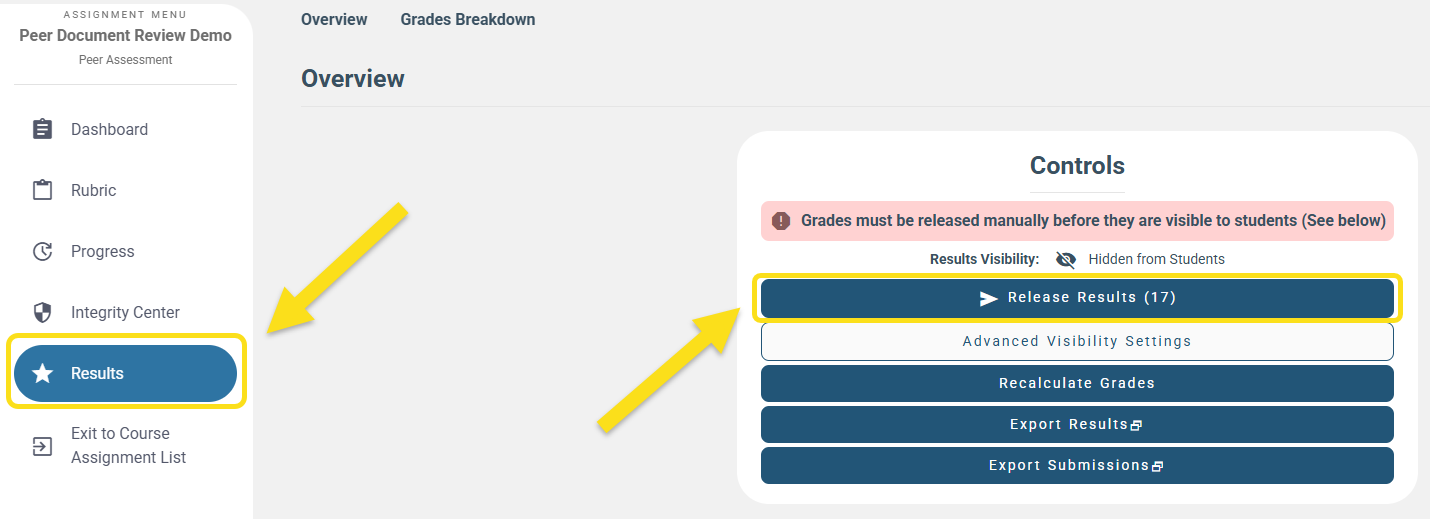
If you selected Release Grades Automatically while creating the assignment, grades will be sent to ICON after the final due date.
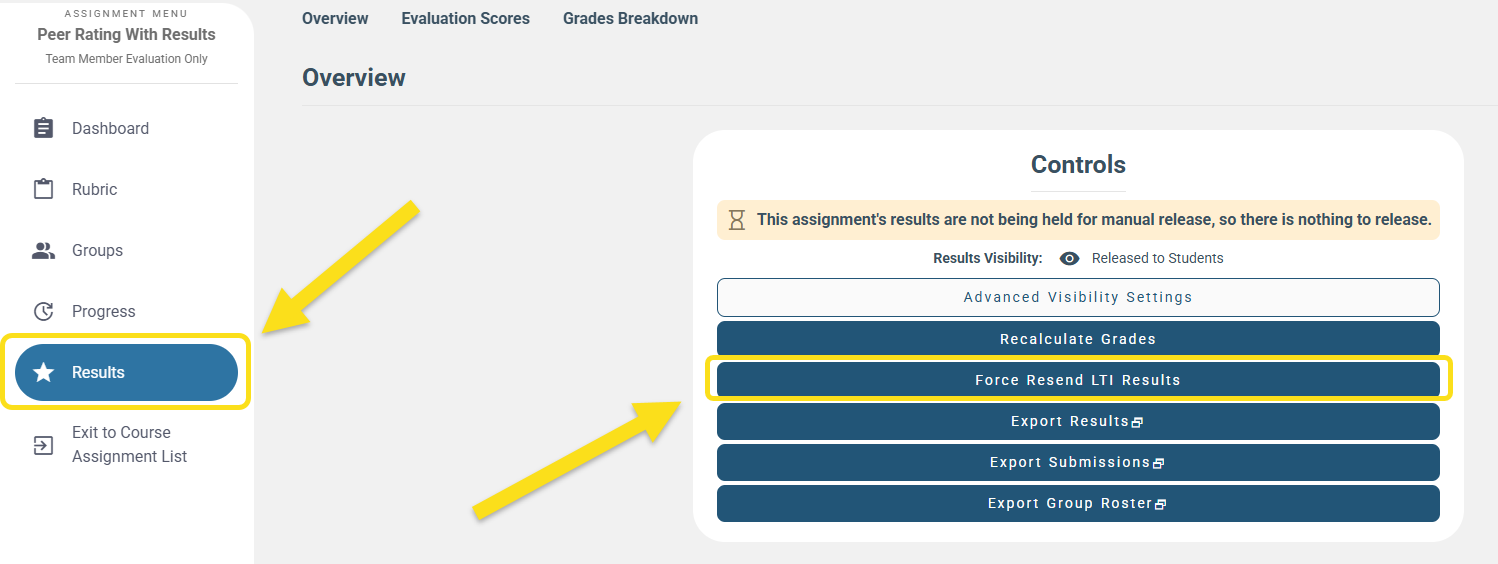
If you have released grades and they are not showing up in ICON, you can resend the grades by clicking on the Results on the left side of the screen, and then clicking Force Resend LTI Results.
How do I add students to groups in Peerceptiv?
There are many ways to create groups. You can manually add students to groups, import groups from ICON, or reuse groups from previous Peerceptiv assignments.
To learn how to create groups, please check out this article from Peerceptiv.
What do students submit during the "Submission Phase" for a live presentation?
While creating a Live Presentation assignment, Peerceptiv will have a number of options for Submission Type.
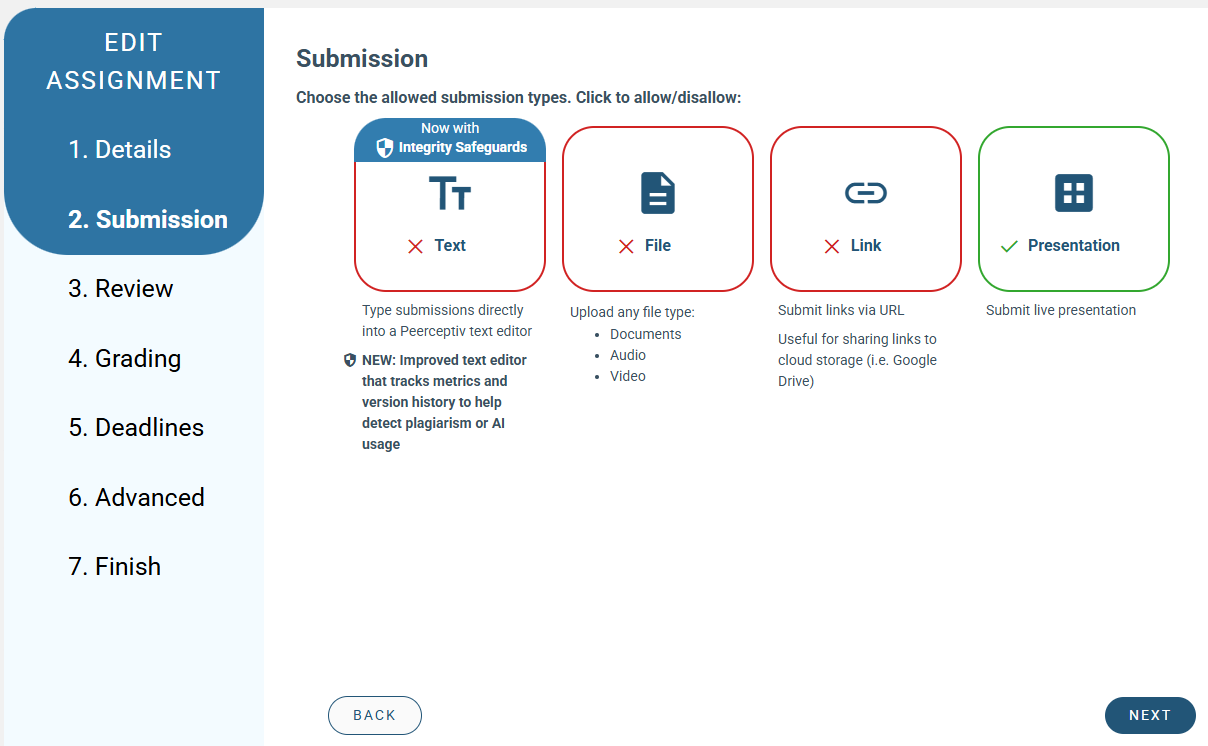
Depending on the nature of the assignment, you may wish to have students upload their slides, an outline of their presentation, or another document. If you do not want students to submit any documents, you can select Presentation.
If you select Presentation, you have two options for submissions.
- You can have all of the students open the assignment in ICON, click on Peerceptiv, and click Submit.
- The instructor can submit all presentations for review. This is the preferred option as it ensures all students will be able to receive reviews and reduces the likelihood of complications on presentation day. To submit presentations for all students, please follow this guide from Peerceptiv.
How can I use Peerceptiv to form groups?
One of the challenges of group work is putting students into groups. Peerceptiv can help by having students fill out a short survey about their availability, working style, interests, and any other criteria the instructor believes would help make good teams. Follow the steps in this guide to use Peerceptiv to make student groups.