First-day access programs deliver significant savings to your students; however, there are times when students will choose to opt out of this content delivery program. Follow these steps to see a list of students who have opted out of the ICON Direct content for your course.
- Log into ICON
Enable the ICON Direct Declined Offers tool in your course navigation window.
Note: This menu option is not visible to students.In Course Navigation, click the Settings link.

Click the Navigation Tab.
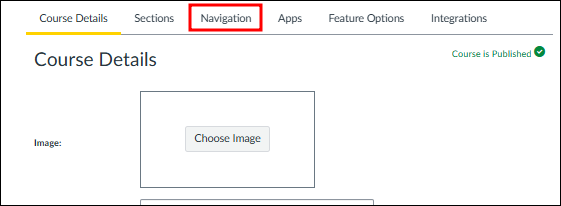
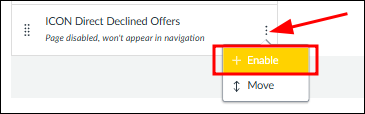
There are two ways to find and enable the “ICON Direct Declined Offers” link.
Option 1: You can drag and drop this link out of the hidden section of options.

Option 2: You can enable a link by clicking the Options (three vertical dots) icon and selecting the Enable option.
Click the Save button.

3. Click on ICON Direct Declined Offers.
A list of any students who have chosen to opt out will be available on the following screen.

At this time the report will deliver information from a single section. If you have a combined ICON course site, please contact ICON-Direct for assistance.
Although students may opt out, it is important that they understand that doing so may cause academic repercussions. By opting out, students will lose access to all the features and benefits of the eText. Students who opt out will also lose any other eText content such as highlights, annotations, or study tips that may have been added to the eText. Instructors are not responsible for providing students with alternate materials. Students who opt out from materials risk falling behind in the course.