General Information
How do I access Note Depot?
If an instructor has enabled Note Depot for your course, you can find a link to it on that course's ICON site. It will be in the navigation menu on the left side of the page.
How do I find the notes for a specific lecture?
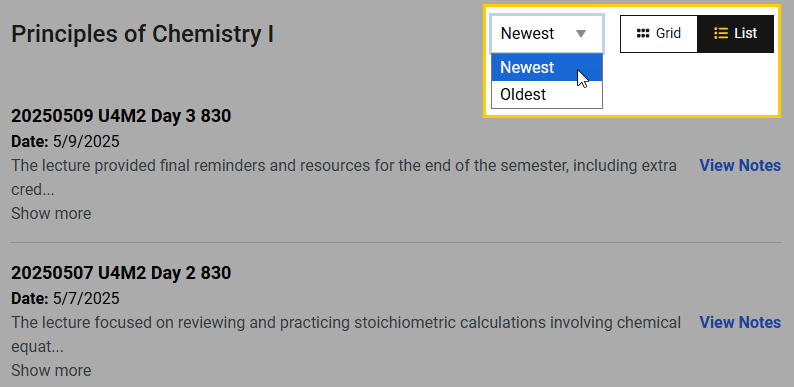
Lecture notes will be organized by the date of the lecture. You can choose to organize the lectures by the Newest or Oldest first.
How soon after a lecture will notes be available?
The course instructor decides when to release the notes to students.
How do I tell which notes are AI generated and which are generated by a notetaker?
When clicking on a specific lecture’s notes, you will see a message at the top that indicates whether you are viewing AI or notetaker generated notes.
The AI notes are sometimes inaccurate. How do I give feedback on the quality of the notes?
Please use the “Helpful/Unhelpful” buttons to help guide our attention to areas we need to focus on for future development.

What should I do if I notice something is wrong in the notes?
AI and human notetakers sometimes make mistakes. If you notice an error in the notes provided by Note Depot, reach out to your instructor or teaching assistant to let them know about the error.
I enjoy using Note Depot. How can I turn it on in my other courses?
Note Depot can only be turned on by the course instructor.
Notetaker Information
Can anyone submit notes for a class?
No, only notetakers that have been designated by the instructors can submit their notes.
I am a notetaker for my class. How do I submit my notes?
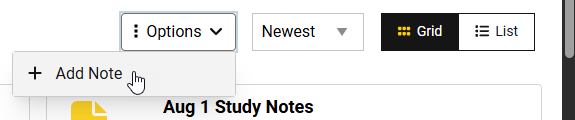
Once you have opened Note Depot, look to see if there are any notes already available for the lecture or discussion session for which you are submitting notes. Then, click on Options and + Add Note to submit your notes.
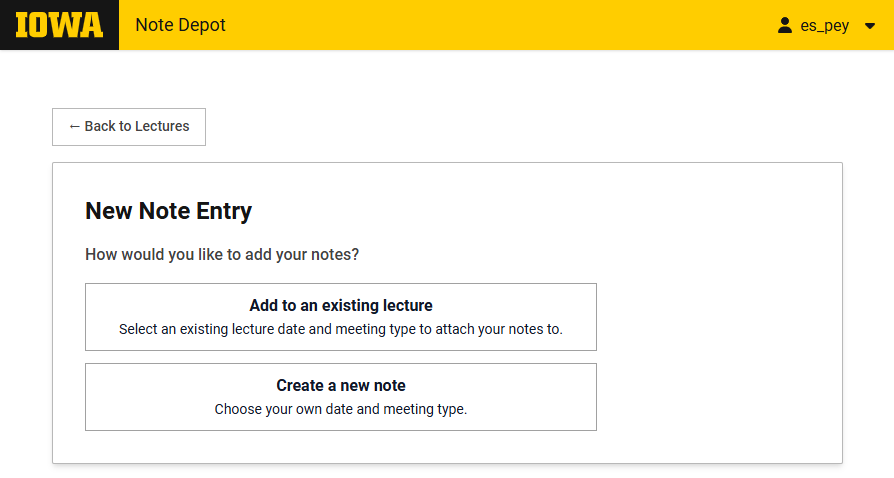
You will need to indicate if you are adding notes to a session that already has notes or if you are submitting notes for a new session.
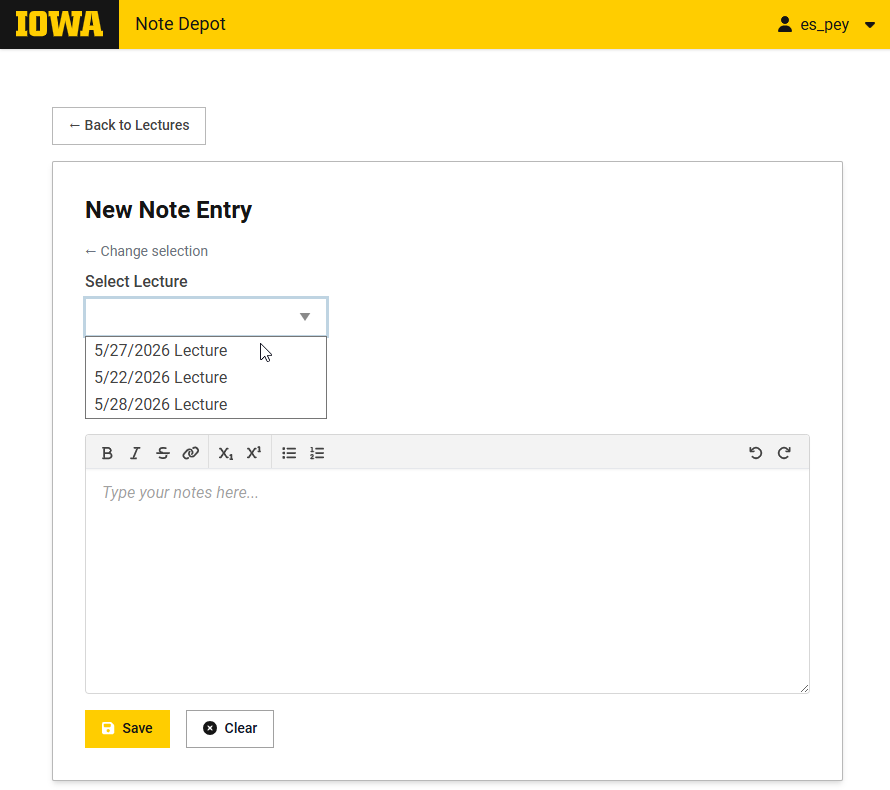
If you are adding notes to an existing lecture, you will have access to a drop down menu. Select the lecture that corresponds with your notes.
If you are creating a new session for your notes, you will need to select the date of the meeting and the meeting type.
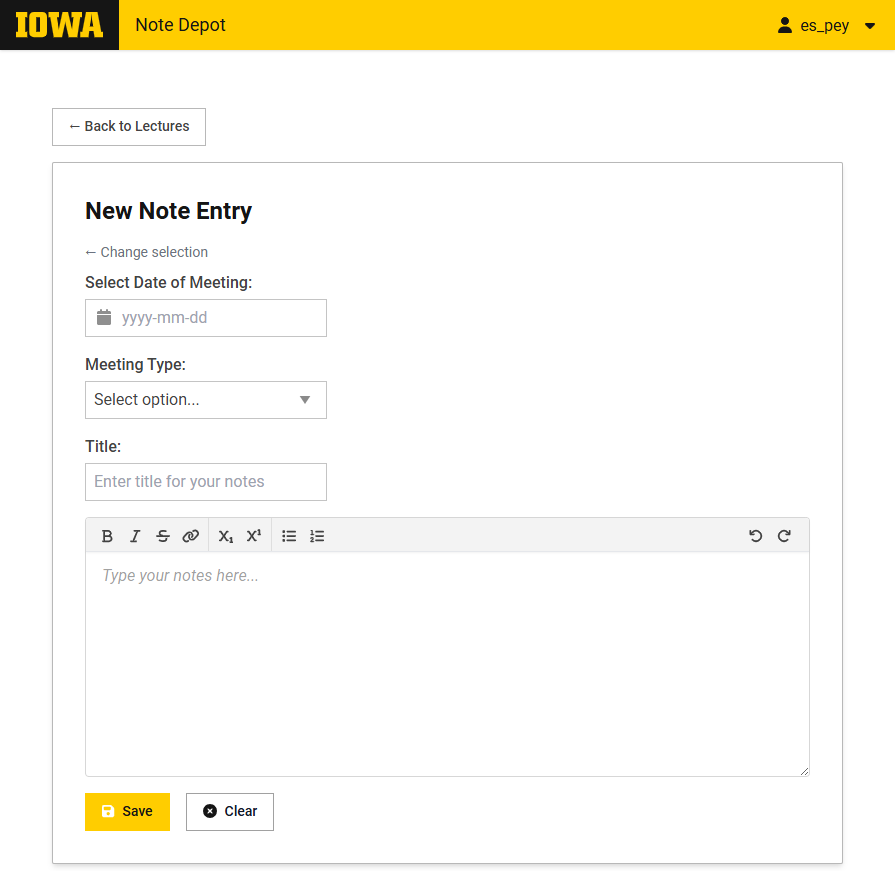
In both cases, you will then enter a title for your notes. Be sure to use a descriptive title that will help the class know what the notes are about and which section or class meeting they correspond to.
Finally, you can use the text box to type your notes from scratch or paste from an existing document. Note: Pasting directly from Google Docs is not recommended at this time.
When you are done, be sure to click Save.
Can I edit the notes I have already submitted?
You cannot directly edit notes that have been submitted. Please work with your instructor to update the notes.
What formats can I use to submit my notes?
Currently, we are unable to support uploading your notes into Note Depot as a file. You can copy and paste your notes from a PDF or Word document into the text box when submitting your notes.
I take my notes by hand. How can I submit my notes to Note Depot?
There is currently not an option to submit handwritten notes directly to Note Depot. You can use a digital tool to turn handwriting into text. Then, you can copy and paste the text into Note Depot.
Have additional questions or feedback?
For technical assistance with Note Depot, to provide feedback, or request additional features, please email its-helpdesk@uiowa.edu.