ICON course sites are automatically created for every section of a course that is created in MAUI. You may find it is more efficient for multiple ICON sites to be combined into one site, so that all your students in various sections of a course share the same ICON space and you only need to maintain one site. With Canvas, instructors are able to combine (cross-list) their courses by following step-by-step instructions from Canvas.
When to Combine
The best time to cross-list course sections is before entering any content into the course offerings that will be used to create the merged course. Only student enrollments will be brought into the primary course, not student generated data or files. After combining courses in Canvas, you may still see the old courses listed. Log out of ICON and log back in to refresh your list of courses.
When Not to Combine
If the course is already a cross-listed course in MAUI, the course rosters will automatically be merged. No additional course shell will be created in ICON, so no combining is necessary.
If the separate course shells have already been in use, existing student course content will be wiped from the merged section. Students’ enrollments will be changed, but the student generated data and files stay in the course shell.
How to View Students
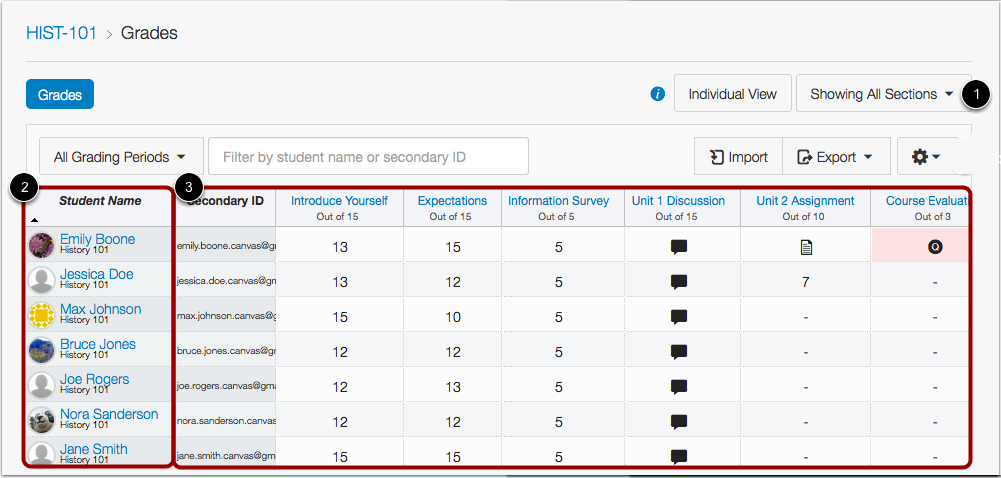
All students in combined sites will be displayed in one course site in ICON. You can view Grades (1) and also assign content by individual section(s).
What About TAs and Collegiate IT Professionals
TAs will need to be added to each section in MAUI before the merge or manually to the sections in ICON after the merge is completed.
If you merge your course sections across colleges, for example when combining a course from the College of Education with a course offered by the Division of Continuing Education, you will need to be mindful of who needs access to your course. By requesting a merge across departments or colleges, you may remove some people’s access to your course. It is preferred to use the Division of Continuing Education’s course (sections ending in :0EXW, for example) as the primary course in these merges.
De-cross-list a Section
If you made a mistake in the cross-listing process and need to remove a section that you have already cross-listed, this can be accomplished by de-cross-listing the section in Canvas. Instructors do not have access to the De-Cross-List this Section button. To request de-cross-listing of a section, please contact the ITS Help Desk.