Installation Guides
Google Chrome Extension
These instructions are for installing Equatio on managed and personal machines.
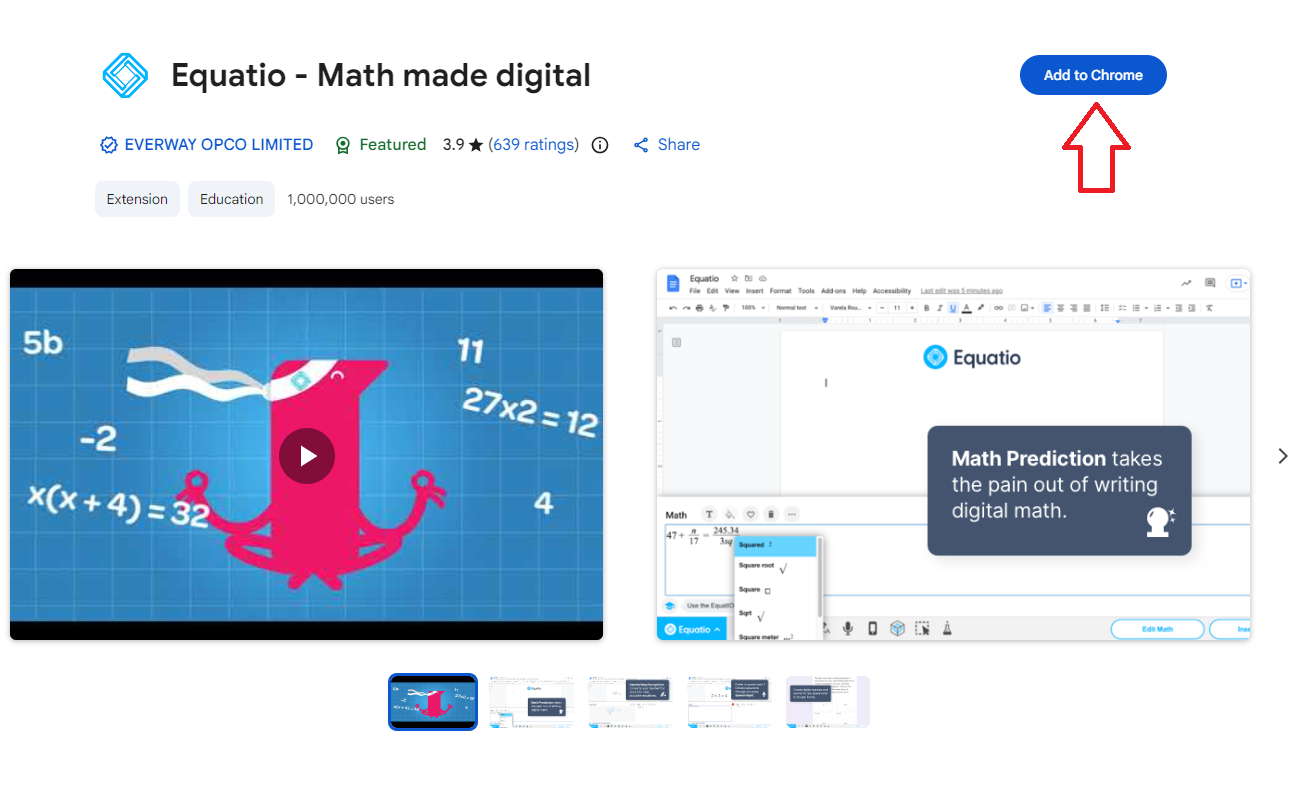
- Navigate to the Chrome Web Store and locate Equatio for Google Chrome.
Click on "Add to Chrome" located in the top right corner.
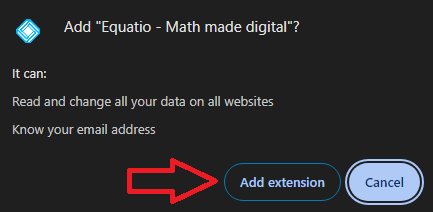
A pop-up window will appear asking you to confirm the extension installation, select "Add Extension".
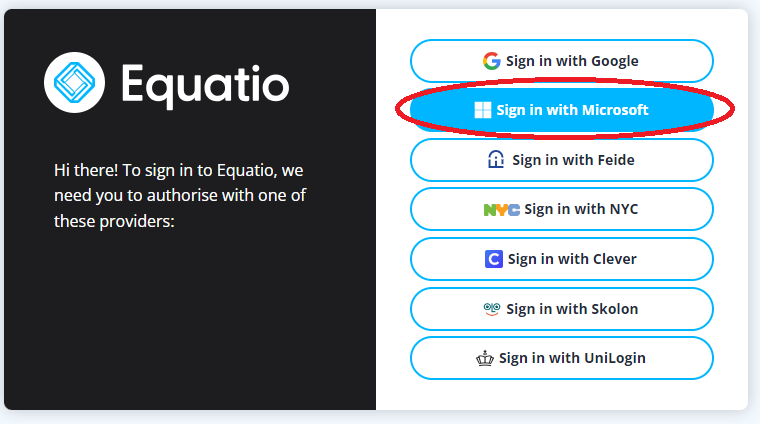
Once the extension is installed, click on the Equatio icon to open the software. When you open Equatio for the first time, you will be asked to sign in. Select "Sign in with Microsoft" and sign in with your HawkID and password.
Windows Computers
These instructions are for installing Equatio on personal machines. If you have a managed Ul computer, contact your local support consultants or check Windows Software Center first, because the application might already be available.
- Download Equatio from the ITS Software Download site.
Extract the Equatio.zip file.

Open the Equatio folder.

Double click on the Equatio.exe application.

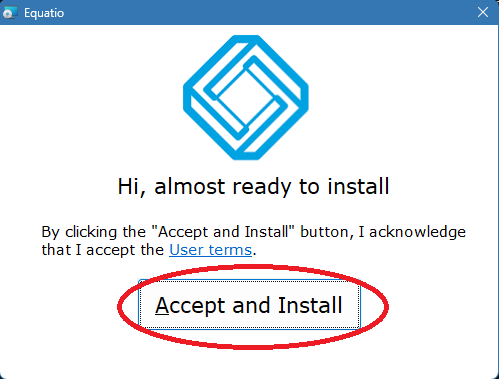
After allowing the app to make changes to the device, click Accept and Install on the Equatio installer.
Equatio is now installed and active on your computer. When you open the program, you will need to sign in. When you click "Sign In", a login screen should open on your browser. Select "Sign in with Microsoft".
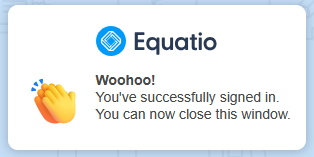
Input your HawkID and password, and after you are logged in, you will see a confirmation screen. Equatio's full toolbar will now be available to you.
MacOS Computers
There is currently not a Mac version for personal machines available but we hope it will be available soon. If you have a managed Ul computer, contact your local support consultants or check Self Service first, because the application might already be available.