Strategies to Approach Alternative Grading
Many instructors use forms of assessment outside of assignment groups, points and percentages. Such assessment strategies include practices like ungrading, in which students grade themselves on progress, and contract grading, in which students sign a contract with a certain number of assignments they must complete successfully to get specific grades.
However, because of how the ICON gradebook treats points and percentages, some of these systems require a different approach to entering and displaying grades. Below are some tips to consider if you are using alternative grading methods. Whatever assessment methods you choose, it’s important to clearly record student outcomes so students can understand their grades.
Tips for Alternative Grading in ICON
Become familiar with ICON settings
Knowing your way around the ICON settings will help you adjust them to fit any grading system you may use. Here are some key settings to be aware of:
- ICON gradebook total. The Total section of the ICON gradebook auto-calculates grades based on points, percentages and assignment category weights. If your grading system works differently, the total may not accurately reflect student grades, and you should select Hide Total and Override Columns under View Options in the gradebook. If you do this, you should provide another way for students to view their current grade (such as a My Grade assignment).
- Student notification settings. In ICON, students can adjust email notifications course by course, and you can let them know which notifications will be especially useful to turn on for your course.
- Assignment grading type. You can select the grade type when you create or edit assignments to display things like letter grades, points, complete/incomplete, etc.
- Assignment groups. You can use assignment groups in ICON to let students know what assignments go together. If you are using points and percentages, you can also weight assignment groups.
Explain your grading system in your syllabus
In your syllabus, provide a brief description of how your grading system will work. Let our students know how the grade is calculated, where they can view their grade, and if their grade will be based on points, percentages, complete/incomplete work, labor completed, etc. You may want to create an ICON module that highlights this information and where to find their total grade if the Total is turned off. Let them know how often you will be updating the grade, where they can find resources, and other basics about your system.
Examples:
Contract Grading: Explain that assignments will be graded complete/incomplete and students must complete a certain number of assignments to receive an A, B, C, etc. Create a module on grading and include a summary of the system, an explanation of how it works, and an example of what a student's grade might look like at the end of the semester.
Ungrading: Explain that students will be grading themselves based on specific criteria, and ask them to submit assignments in which they explain their current grade to you. Create a module on grading and include the list of criteria, examples of how students can meet the criteria, and an example of how students will justify their grade to you.
Create a ‘My Grade’ assignment for students
In standard grading systems, ICON can automatically tabulate a grade in the “Total” tab of the gradebook based on the values and weights assigned to various student work; it will update as you input additional scores. However, if your system doesn’t rely on a direct mathematical relationship between assignment scores and final grade, there are other ways to continually update students.
Creating a My Grade assignment that you manually update will give you a more flexible way to share total grades with students. You can do this by manually entering grades into the ICON gradebook, or by downloading the gradebook CSV file, updating grades, and then importing the file to input those changes.
Examples:
Contract grading: If a contract grading system requires 15/20 assignments rated as “satisfactory” to achieve an A, the My Grade assignment could reflect how many assignments the student has currently completed.
Ungrading: In an ungraded class, a student could regularly submit an assignment called My Grade with an explanation of their choice.
Include rubrics or other evaluation criteria
Your ICON assignment description should contain information on how the assignment will be evaluated and its overall weight or contribution to the grade. This is important for all grading systems, but especially if the student cannot access a numerical grade via ICON. For ungraded systems, indicate how this assignment might contribute to the student’s assessment of their learning milestones in the class.
Utilize milestones and reminders
Include checkpoints so that students have a full picture of what the grading criteria is for the entire semester. The milestones should be designed to allow students to keep track of their grade on their own. Throughout the semester, also provide updates on what students should have or could have achieved at that point. Students should have a way to check if they have met assignment requirements.
Examples
Contract Grading: Create an ICON page with a contract. Every 2-3 weeks, update the contract by checking off assignments that have been completed. Halfway through the semester, ask students to fill out the contract with what they’ve completed and plan what they will do for the remainder of the semester.
Any System: Create an ICON page with a timeline that lays out what assignments should be completed at specific points in the semester.
Example of Alternative Grading in ICON
Contract Grading - Sarah Barringer
Grading System Key Pieces
- Every student begins the semester with the same base grade
- By completing certain criteria, students raise or lower their grade
- Individual assignments are graded complete/incomplete
Example
- Every student begins the semester with a B
- Students can raise their grade by completing revisions on major projects. For everyone 1 revision, their grade goes up by 1/3: B to B+, B+ to A- etc.
- Students can lower their grade by not attending class, not completing assignments, or turning in assignments late. For every 4 instances of this, the grades down by 1/3: B to B-, B- to C+, etc.
On ICON
- Assignments can be grouped however you wish.
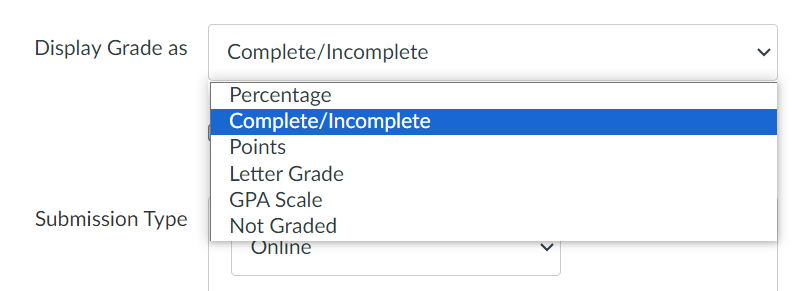
- When editing an assignment, under Display Grade as, select Complete/Incomplete
-
Create an assignment that students can easily find labeled ‘Your Grade,’ or something similar.

- At the beginning of the semester, every students should have the base grade entered under ‘Your Grade’
- When students complete criteria for lowering or raising their grade, the teacher should manually raise or lower the grade.
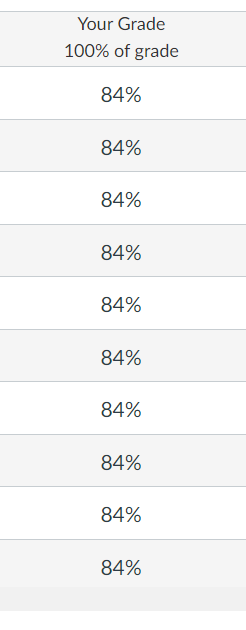
Example
- Riva begins the semester with a B.
- In week 2, Riva has completed all assignments on time and has attended class. Riva still has a B.
- In week 3, Riva turns in a revision, which the teacher marks as complete, and the teacher raises their grade to a B+
- In week 5, Riva turns in another revision that is marked complete, but they also miss two classes that week and don’t turn in the two pre-class writing assignments, therefore Riva’s grade remains a B+.
Grading System Key Pieces
- At the end of the semester, students are graded out of exactly 100 points.
- Each assignment is assigned a number of points equal to its percentage. An assignment worth 1 point is worth 1%. An assignment worth 20 points is 20%.
Example
- There are 15 weeks for participation, and each week is worth 1 point: 15%
- Two major papers are each worth 25 points. This might be the whole paper or broken into process pieces, such that a thesis turned in in advance is worth 5 points out of the 25: 50%
- There are 25 homeworks, each worth 1 point: 25%
- There are 2 quizzes, each worth 5 points: 10%
On ICON (Excel Option)
- Assignments can be grouped however you wish.
- All assignment groups can be weighted as 0% of the grade or given the weight that matches the number of points available within the group, but ultimately that weight will not be used to calculate the grade.
- When editing an assignment, under ‘Display Grade as,’ select ‘Points.’ This allows students to see how many points they have earned in comparison to how many points were possible.
- Create an assignment that is labeled as ‘Your Grade,’ or something similar.
- Update this as often as seems appropriate by manually entering the grade based on calculations from Excel, as described below.
- Update the Test Student so that they have full points on all assignments that have been graded.
- Each week, or however often the teacher would like to update the grade, under Grades select Export > Export Entire Gradebook.
- In Excel, create two new columns. In the first column add up the number of points the students currently have. You can do this with the equation: =SUM(F3:X3). The ‘X’ will depend on how many assignments you have.
- For example, the first assignment should be listed in the F column. If there are 16 assignments, the last assignment would be listed in the U column. Therefore: =SUM(F3:T3).
- You should be able to either only select boxes with numbers in them, or select all rows that could contain points, since for assignments that haven’t been graded yet, there will be no number in that box and it won’t affect the calculation.
- Drag the equation down through the column so that it calculates how many points every student has, including the Test Student.
- In the second column, add an equation that divides the each student’s points by the Test Student’s points. For example, if the test student has 10 points: =SUM(V3/10).
- Drag the equation down through the column so that it calculates how many points every student has, including the Test Student. This will give you every students’ percentage. Make sure the Test Student has 1! If they don’t, there’s an incorrect number somewhere.
- Enter these percentages into the ‘Your Grade’ assignment.
- In Excel, create two new columns. In the first column add up the number of points the students currently have. You can do this with the equation: =SUM(F3:X3). The ‘X’ will depend on how many assignments you have.
Example
- In week 2, Turan has completed 2 weeks of participation and all 2 homework assignments. When calculating Turan’s grade in Excel he has 4/4. In the gradebook, he has 100%.
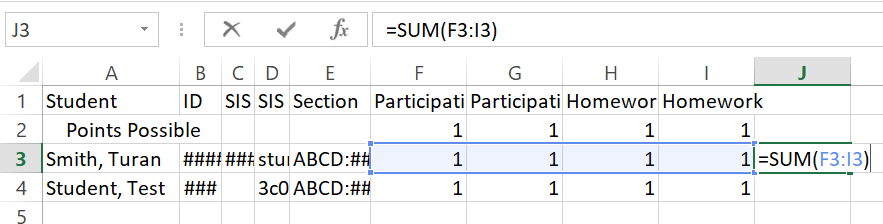
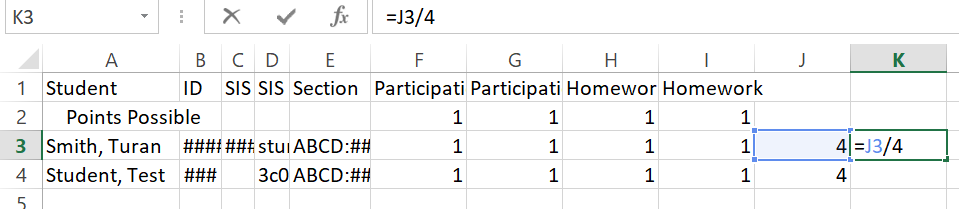
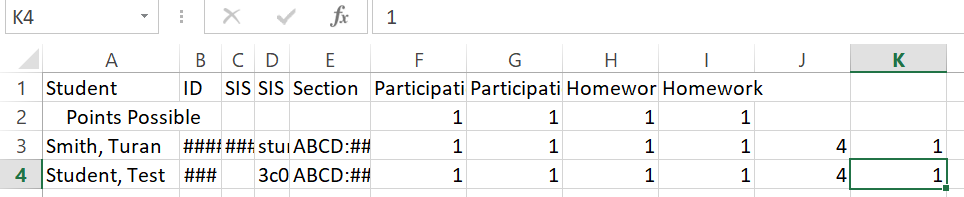
- In week 4, Turan has completed 4 weeks of participation, 3 out of the 5 homework assignments, and received 20 out of the 25 points on the paper. When calculating Turan’s grade in Excel, he has 27/34. In the gradebook, he has 79.41%.


On ICON (Weighted Group Option)
- Assignments can be grouped however you wish.
- All assignment groups should be weighted as 0% of the grade.
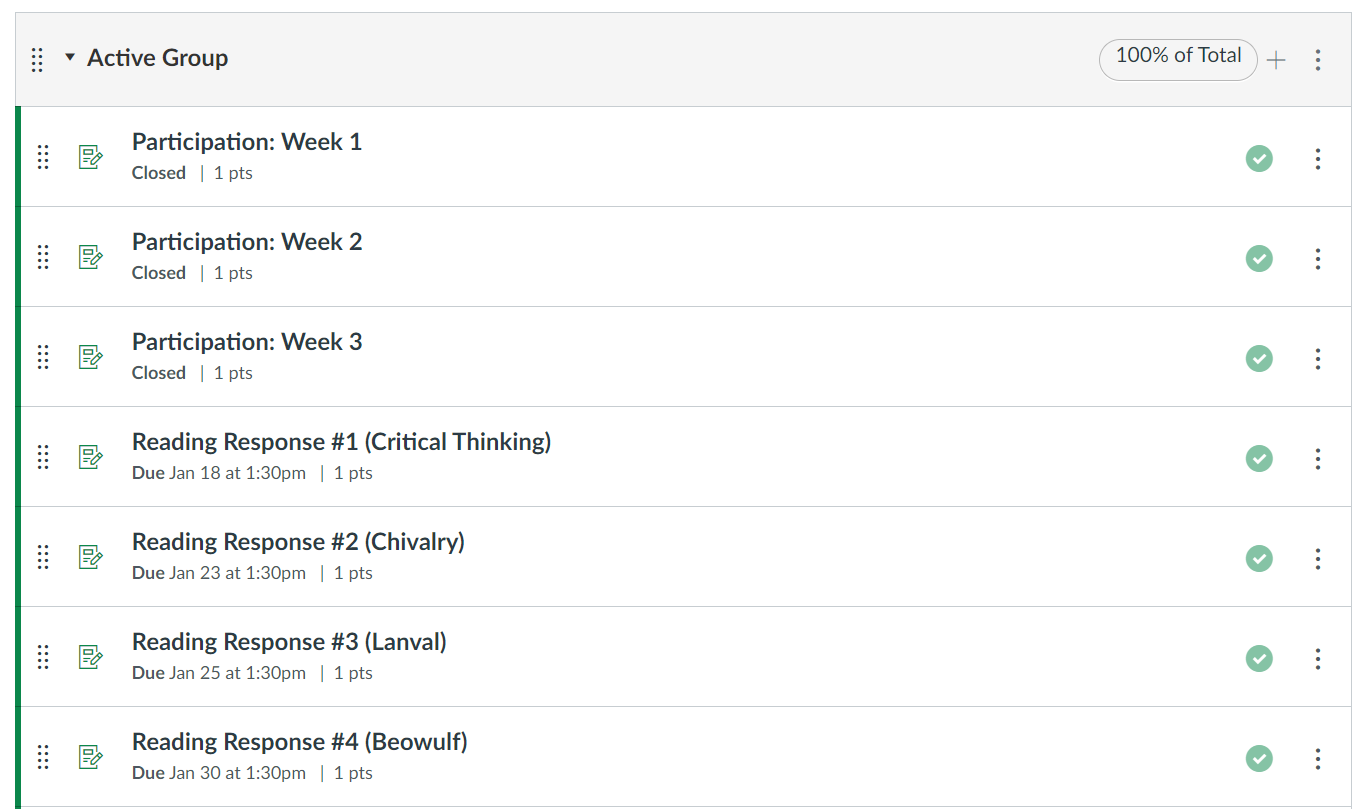
- Create one group that is the Active group that is worth 100% of the grade.
- As assignments are graded, move them out of their unweighted group and into the weighted group.


Example
- In week 3, graded assignments include 3 weeks of participation and 4 homework assignments. The teacher has moved these assignments into the Active group. Danni has completed all of these assignments, and so the gradebook shows 100%.
- In week 10, graded assignments include 9 weeks of participation, 13 homework assignments, and a 25-point paper. The teacher has moved these assignments into the Active group. Danni has completed 9 weeks of participation, 10 out of the 13 homework assignments, and received 20 out of the 25 points on the paper. In the gradebook, her grade is 82.98%.
Other Resources
If you'd like to learn more about alternative grading, here are some helpful resources.
- Laura Gibbs' book chapter: Getting Rid of Grades
- Alfie Kohn: The Case Against Grades
- Lindsay Onufer: Three Ideas for Piloting Scaled Alternative Grading Methods
Jesse Stommel’s blogpost: How to Ungrade