To help meet campus-wide accessibility goals and with input from members of the Support Community for Instructional Technology (SCIT) Core Team, Distance and Online Education, and other campus partners, the Office of Teaching, Learning, and Technology has created an ICON course site template that can help guide the development of an accessible and uniform site. It is designed to offer resources and help to instructors who'd like some advice on how to present their courses in an accessible way.
The template meets all major accessibility best practices regarding the use of headings and tables, how to insert links or lists, and what is appropriate color contrast. All images in the template either have alternative text or are marked as decorative. In addition, it avoids heavy use of HTML formatting or tables for layout purposes to help keep pages easily navigable using assistive technology.
The template includes information on how to continue these practices as instructors build the site and provides resources to do so. It also features instructions on how to duplicate items, create new pages, etc., to streamline the experience, and includes brand-compliant materials alongside instructions on how to implement or replace them.
Learn about the ICON Template
What's in the course template?
- A home page with guidelines on what to present first and how to quickly situate students in the course.
- A series of modules that contain overview pages to help layout materials and make course and unit expectations clear.
- A sample discussion to help guide the use of the Discussion Boards feature in ICON.
- A sample assignment with instructions on how to set up assignments for an ICON course.
- A sample quiz to allow for easy assessment creation.
Accessing and installing the template
To find a guide on how to install the template file into your ICON site, please navigate to the ICON Course Template Guide and follow the instructions.
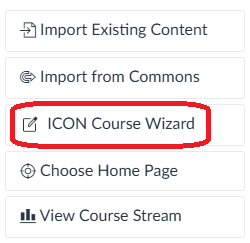
When you navigate to a new ICON course, you will have a new option in the right-hand menu: ICON Course Wizard. If you click on this button, a wizard will open that will ask you a number of questions about your course and offer you a guided experience of installing the accessible course template onto your new ICON site.